- Made by AppCoda
- Contact us / Support
- Tweet this book
- Preface
- 1. The Development Tools, the Learning Approach, and the App Idea
- 2. Your First Taste of Swift with Playgrounds
- 3. Hello World! Build Your First App in Swift
- 4. Hello World App Explained
- 5. Introduction to Auto Layout
- 6. Designing UI Using Stack Views
- 7. Introduction to Prototyping
- 8. Creating a Simple Table-based App
- 9. Customize Table Views Using Prototype Cell, Diffable Data Source and Dark Mode
- 10. Displaying Alerts with UIAlertController and Handling Table View Selection
- 11. Object Oriented Programming, Project Organization and Code Documentation
- 12. Table Row Deletion, Custom Action Button and MVC
- 13. Introduction to Navigation Controller and Segue
- 14. Detail View Enhancement and Navigation Bar Customization
- 15. Navigation Bar Customization, Extensions and Dynamic Type
- 16. Working with Maps
- 17. Basic Animations, Visual Effects and Unwind Segues
- 18. Working with Static Table Views, Camera and NSLayoutConstraint
- 19. Working with Core Data
- 20. Search Bar and UISearchController
- 21. Building Walkthrough Screens with UIPageViewController and Container Views
- 22. Exploring Tab Bar Controller and Storyboard References
- 23. Getting Started with WKWebView and SFSafariViewController
- 24. Exploring CloudKit
- 25. Localizing Your App to Reach More Users
- 26. Deploying and Testing Your App on a Real iOS Device
- 27. Beta Testing with TestFlight and CloudKit Production Deployment
- 28. Submit Your App to App Store
- 29. Adopting 3D Touch, Haptic Touch and Context Menus
- 30. Developing User Notifications in iOS
- 31. Appendix - Swift Basics
- Published with GitBook
Chapter 15
Navigation Bar Customization, Dark Mode, and Dynamic Type
Fun is one of the most important and underrated ingredients in any successful venture. If you're not having fun, then it's probably time to call it quits and try something else.
- Richard Branson
The detail view that we built is already great, but we will make it even more attractive in this chapter. Figure 15-1 shows the improved design with the following changes:
- Customizing the navigation bar to make it transparent, so that the restaurant image shifts to the top of the screen.
- Customizing the back button. Instead of using the default back button, we use our own back icon and remove the title of the back button.
- Changing the color of the status bar. To cater for dark content, it is better for us to change the color of the status bar to white.
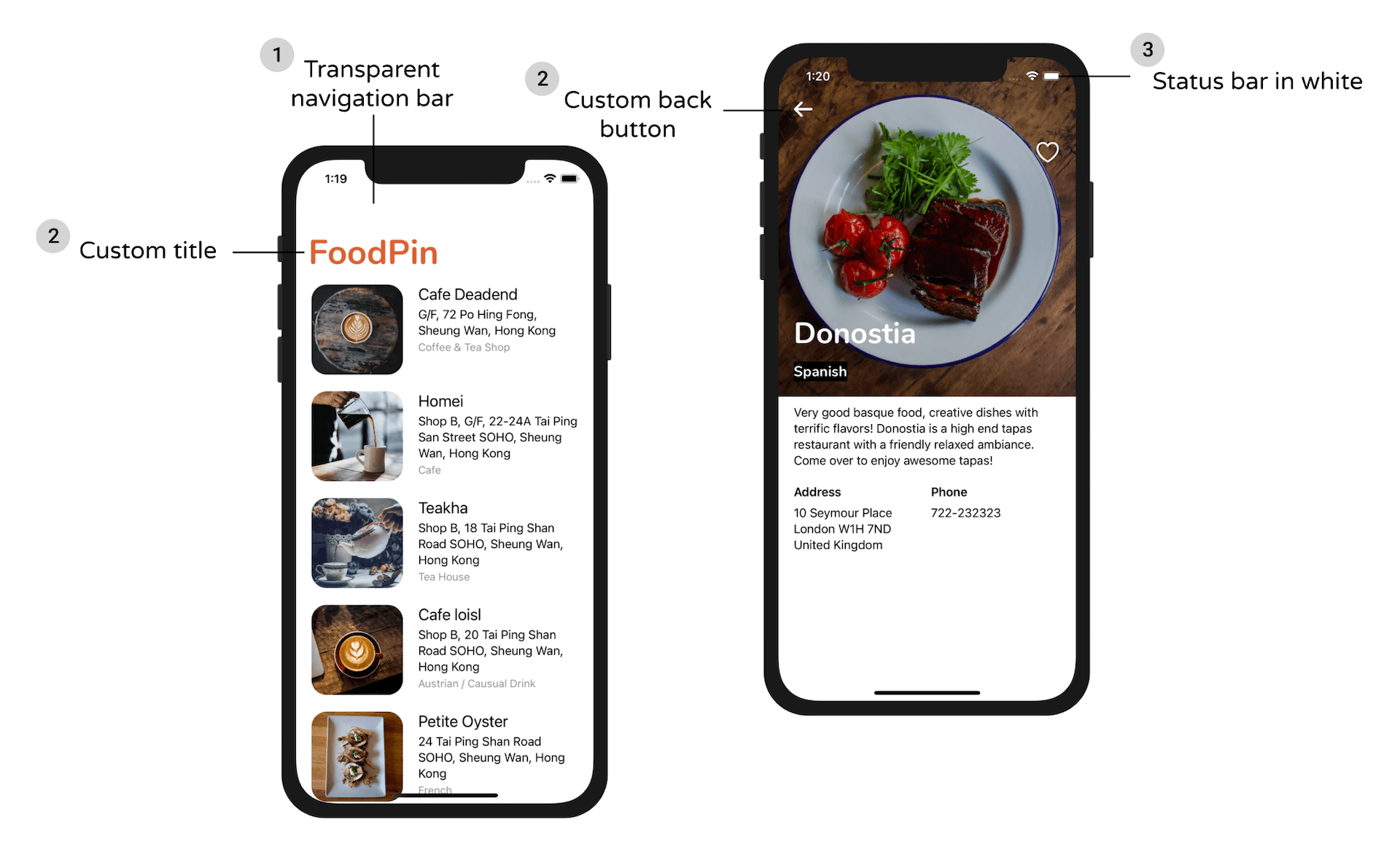
On top of that, I want to show you how to customize the large title of the navigation bar on the home screen. There are three changes we are going to perform:
- Customizing the background of the navigation bar and make it transparent.
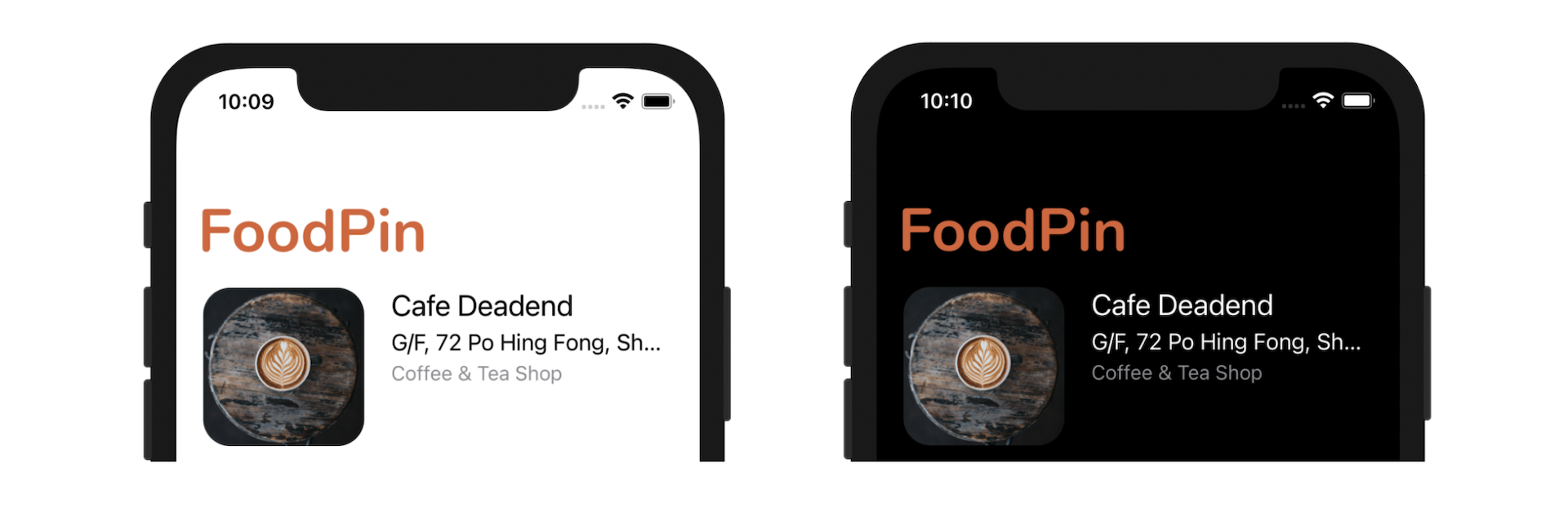
- Change the font of the large title and make its color adaptable to different interface style (light/dark mode).
- Hide the navigation bar when users swipe the table view.
In the first two section of this chapter, we will focus on the customization of the navigation bar and status bar. Thereafter, I will discuss with you about Dynamic Type, a technology built into iOS that lets users choose their preferred text size. While working on the project, I will also show you how to use Swift extensions to simplify our code.
Let's start with the navigation bar customization.
Customizing the Navigation Bar
We will start with the customization of the home screen. What we are going to do is to make its background transparent and change the color of the title.
Starting from iOS 13, Apple introduced a new class called UINavigationBarAppearance for customizing the navigation bar. You can apply the customization to the navigation bar of a particular view or the whole application. I will demonstrate both cases in this chapter.
Let's open the RestaurantTableViewController.swift file. Insert the following lines of code in the viewDidLoad() method:
if let appearance = navigationController?.navigationBar.standardAppearance {

    appearance.configureWithTransparentBackground()

    if let customFont = UIFont(name: "Nunito-Bold", size: 45.0) {

        appearance.titleTextAttributes = [.foregroundColor: UIColor(red: 218/255, green: 96/255, blue: 51/255, alpha: 1.0)]
        appearance.largeTitleTextAttributes = [.foregroundColor: UIColor(red: 218/255, green: 96/255, blue: 51/255, alpha: 1.0), .font: customFont]
    }

    navigationController?.navigationBar.standardAppearance = appearance
    navigationController?.navigationBar.compactAppearance = appearance
    navigationController?.navigationBar.scrollEdgeAppearance = appearance
}
To customize the navigation bar, you first need to retrieve the current UINavigationBarAppearance object. The standardAppearance property contains the current appearance settings for the standard size navigation bar. The next step is to modify the properties of the appearance object and apply our customizations. The configureWithTransparentBackground() function configures the navigation bar with a transparent background and no shadow.
To change the bar title's color and font, you modify the titleTextAttributes and largeTitleTextAttributes properties. Both properties accept a set of attributes in key/value format. The titleTextAttributes is designed for the standard-size title, while the largeTitleTextAttributes property is used when displaying large-size title. In the code above, we modify the font color and apply our custom font.
Even though we have completed the modification of the appearance object, the customization will not be applied to the navigation bar immediately. You have to assign the object to the standardAppearance, compactAppearance, and scrollEdgeAppearance properties. Each of these properties is responsible for the appearance of the navigation bar at different state. The standardAppearance property stores the appearance settings of the standard size navigation bar, while the setting of compactAppearance controls the appearance of the compact size navigation bar. scrollEdgeAppearance is the appearance settings to use when the edge of any scrollable content reaches the matching edge of the navigation bar.
Now run the app to have a quick test. You should see the result displayed in figure 15-2.
Now let's move on to the detailed view. What we want to do is to shift the table view upwards towards the top edge of the screen. Insert the following code in the viewDidLoad() method of RestaurantDetailViewController:
tableView.contentInsetAdjustmentBehavior = .never
The value of the contentInsetAdjustmentBehavior property controls the behavior for determining the adjusted content offsets of the table view. By default, it is set to .always. In this case, iOS automatically adjusts the content offset of the table view such that the content area will not be blocked by the navigation bar (see figure 15-3 (left)). Now we set contentInsetAdjustmentBehavior to .never, telling iOS not to adjust the content area.

As mentioned at the beginning of this chapter, we also want to customize the back button icon of the navigation controller. Instead of using the default image, we want to display an arrow image (i.e. arrow.backward) from SF Symbols.
The UINavigationBarAppearance object also provides you with a function called setBackIndicatorImage for changing the back button image like this:
var backButtonImage = UIImage(systemName: "arrow.backward", withConfiguration: UIImage.SymbolConfiguration(pointSize: 20.0, weight: .bold))

backButtonImage = backButtonImage?.withAlignmentRectInsets(UIEdgeInsets(top: 0, left: -10, bottom: 0, right: 0))
appearance.setBackIndicatorImage(backButtonImage, transitionMaskImage: backButtonImage)
In the sample code above, we load a system image and enlarge it by passing our symbol configuration. To change the back button image, you can call setBackIndicatorImage of the UINavigationBarAppearance object and pass it our own image. Optionally, we adjust the back button image's position by using withAlignmentRectInsets.
This is a global change that applies to all screens with a back button, not just a single view. Therefore, we will not modify the appearance object in Restaurant TableViewController to apply the change.
The question is: where should we put the code above?
The AppDelegate class is sort of the entry point of the application. The class is generated by Xcode when your project is created from a project template. Typically we put this customization code in the application(_:didFinishLaunchingWithOptions:) method of the AppDelegate class. This method will be called when the application loads up and is suitable for adding customization code that affects the entire application.
Now, update the application(_:didFinishLaunchingWithOptions:) method of AppDelegate like this:
func application(_ application: UIApplication, didFinishLaunchingWithOptions launchOptions: [UIApplication.LaunchOptionsKey: Any]?) -> Bool {

    let navBarAppearance = UINavigationBarAppearance()

    var backButtonImage = UIImage(systemName: "arrow.backward", withConfiguration: UIImage.SymbolConfiguration(pointSize: 20.0, weight: .bold))

    backButtonImage = backButtonImage?.withAlignmentRectInsets(UIEdgeInsets(top: 0, left: -10, bottom: 0, right: 0))
    navBarAppearance.setBackIndicatorImage(backButtonImage, transitionMaskImage: backButtonImage)

    UINavigationBar.appearance().tintColor = .white
    UINavigationBar.appearance().standardAppearance = navBarAppearance
    UINavigationBar.appearance().compactAppearance = navBarAppearance
    UINavigationBar.appearance().scrollEdgeAppearance = navBarAppearance

    return true

}
In the code above, we first create the UINavigationBarAppearance object and change the back button image. The modified appearance object is then assigned to the standardAppearance, compactAppearance, and scrollEdgeAppearance properties.
That's it! You can now run your app and have a look. Since we also change the tintColor property of the navigation bar, the back button icon should be changed to a white arrow.
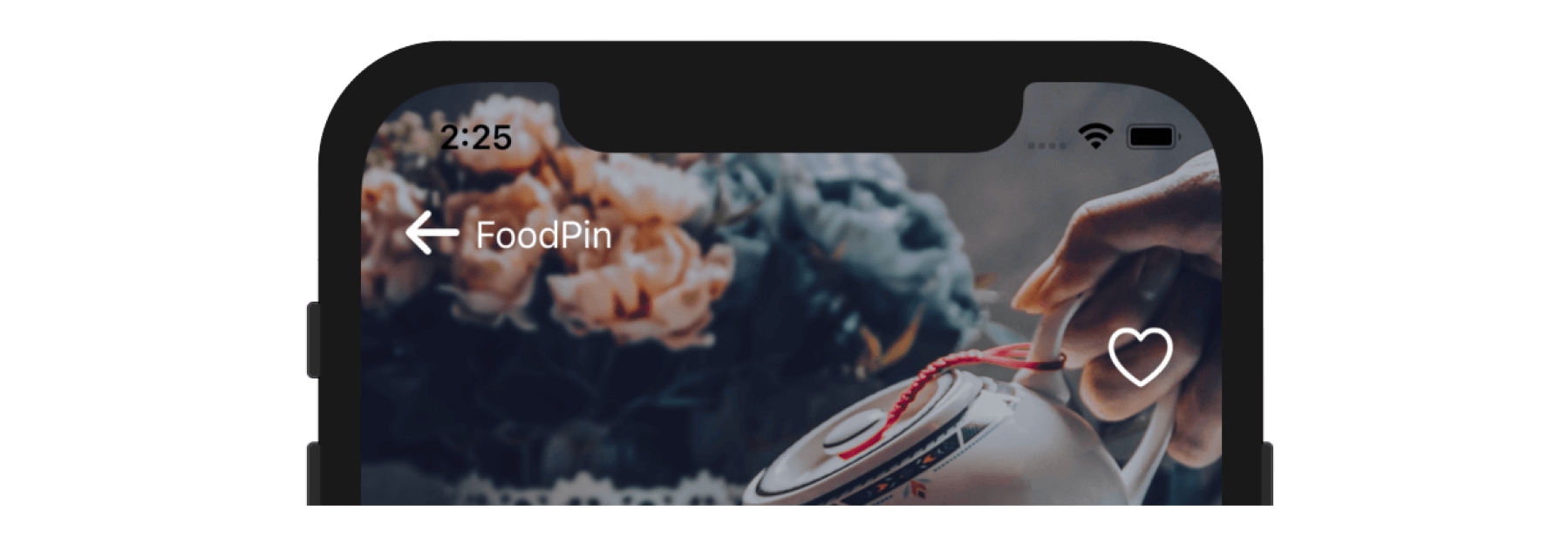
As you can see, the app still shows the back button title. If you want to remove the title, open RestaurantTableViewController.swift and add the following line of code in the viewDidLoad() method:
navigationItem.backButtonTitle = ""
Test the app again, the navigation bar should no longer display the back button title.
Hiding a Navigation Bar on Swipe
Since iOS 8, Apple has introduced a nifty feature which allows you to hide a navigation bar on swipe or tap. This feature shouldn't be new to you. When scrolling down a web page in mobile Safari, the address bar is condensed and the toolbar goes away. If you want to build this feature in your app, you will need a click or a line of code to enable this feature.
In Main storyboard, select the navigation controller in the navigation controller scene. In the Attribute inspector, there is an option named On Swipe under the navigation controller section. When enabled, your app will hide the navigation bar, as well as, toolbar (if any) when a user scrolls down the content view. The bars appear again when the user swipes back up.
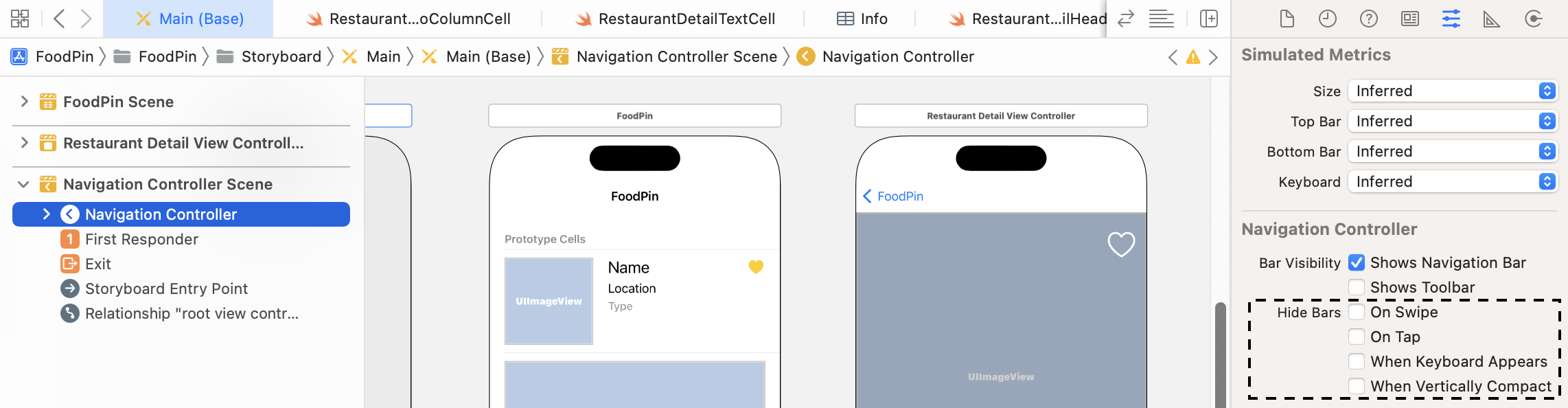
This change applies to all navigation bars of the entire app. That means, both the restaurant table view controller and the detail view controller are automatically enabled with the feature. What if we just want to hide the navigation bar for the restaurant table view controller? It would be better for us to do this in code.
Note: If you've enabled the On Swipe option in Interface Builder, please disable it before moving on because we will set the option programmatically.
To hide the bars on swipe, you set the hidesBarsOnSwipe property to true using the code below:
navigationController?.hidesBarsOnSwipe = true
Let's add the line above in the viewDidLoad method of RestaurantTableViewController. After that, run the app to have a quick test. Swipe up the table view and the navigator bar will be hidden. It works pretty well.
However, if you select a restaurant to navigate to the detailed view, this swipe-to-hide feature is enabled too. Okay, we want to disable the swipe-to-hide feature in the detail view. Let's add the following code in the viewDidLoad method of RestaurantDetailViewController to disable it:
navigationController?.hidesBarsOnSwipe = false
Run the app again to test it. Does it fix the issue?
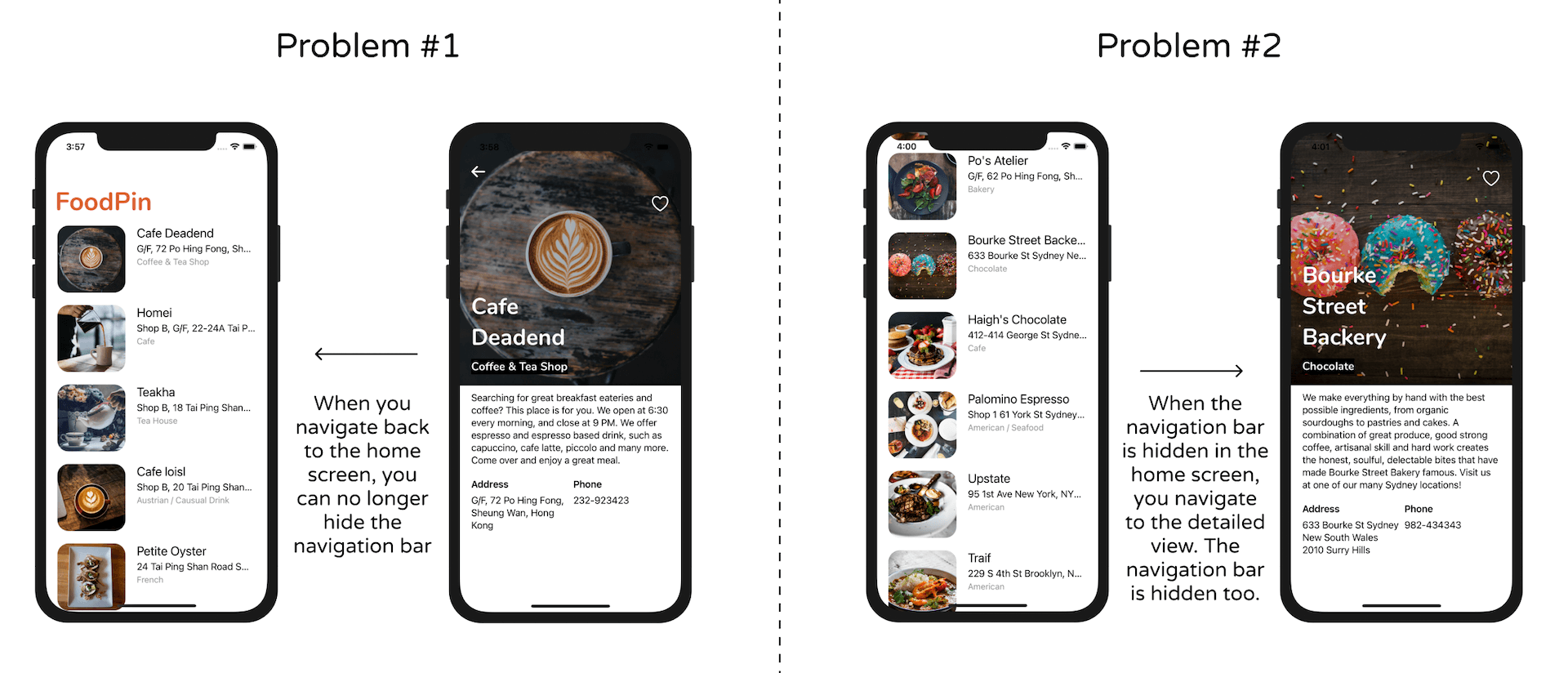
At first, it looks like we have fixed the navigation bar issue. But if you test more thoroughly, you will find other issues as illustrated in figure 15-6.
We briefly discussed the view controller life cycle. iOS calls the viewDidLoad method when the view controller’s content view is first created and loaded from a storyboard. This is why we use to set up our outlet variables or perform other initializations in viewDidLoad.
However, keep in mind that the viewDidLoad method is called only once when the view is first loaded. After that, it won't be called again. In other words, if you navigate to the detail view, the hidesBarsOnSwipe property is set to false. And the value will keep intact even when you navigate back to the table view controller. This is the reason why the navigation bar won't hide (Problem #1).
For Problem #2, the hidden navigation bar is carried over to the detail view. Even if we manage to set the hidesBarsOnSwipe property back to false in the viewDidLoad method, it won't display the navigation bar. We have to explicitly tell the app to re-display the navigation bar.
Fortunately, the UIViewController class provides several methods that respond to different view states. Unlike the viewDidLoad method, these methods are called every time when a view is displayed or removed. When a view is displayed, both viewWillAppear and viewDidAppear methods are invoked. The viewWillAppear method is called when the view is about to display, whereas the viewDidAppear method is triggered as soon as the view is presented on screen.
Apparently, the viewWillAppear method fits our need. Insert the following code in the RestaurantTableViewController class:
override func viewWillAppear(_ animated: Bool) {
    super.viewWillAppear(animated)

    navigationController?.hidesBarsOnSwipe = true
}
For the RestaurantDetailViewController class, add the following code snippet:
override func viewWillAppear(_ animated: Bool) {
    super.viewWillAppear(animated)

    navigationController?.hidesBarsOnSwipe = false
    navigationController?.setNavigationBarHidden(false, animated: true)
}
As the viewWillAppear method is called every time when a view is displayed, we can toggle the hidesBarsOnSwipe property perfectly. The extra line of code in the RestaurantDetailViewController class explicitly tells the app to unhide the navigation bar. This resolves problem #2. One thing to take note is that you must call the super method at some point of the implementation. After the changes, run the app and have fun!
Exercise #1
Before we continue to work on the new features of the app, let's fix a bug that you may notice for some time. In the main view, we use the large title for the navigation bar. Did you notice that the navigation bar becomes a standard size bar when you navigate from the detailed view back to the main view?
Your exercise is to fix this bug such that the navigation bar of the main view (i.e. RestaurantTableViewController) always shows large title.
Swift Extensions
Before I go on to discuss with you about other UI customizations, I want to take a detour here and talk about a feature in Swift known as Extensions. We have discussed extensions before but I want to go a little deeper and show you how to utilize this powerful Swift feature.
Extensions in Swift is a great feature that lets you add new functionality to an existing class or other types including Struct and Enum . What does it mean to you? How can you use this feature to write better code? Let me show an example.
If you look into the RestaurantTableViewController class, you will find multiple lines of code related to the initialization of UIColor like this:
UIColor(red: 218/255, green: 96/255, blue: 51/255, alpha: 1.0)
Here we instantiate a UIColor object with custom RGB values. Because UIColor only accepts the RGB value in the scale of 0 to 1, we have to divide each of the RGB components by 255 during initialization.
It is a bit troublesome. Can we simplify the code above to this?
UIColor(red: 218, green: 96, blue: 51)
Here we can apply extensions to extend the functionality of UIColor. Even though UIColor is a built-in class provided by the iOS SDK, we can use Swift extensions to add more features to it.
To better organize our projects, let's first create a group for storing the extension file. In project navigator, right click the FoodPin folder and choose New Group. Name the group Extensions.
Next, right click Extensions and select New File…. Choose the Swift File template and name the file UIColor+Ext.swift. Once the file is created, update the code like this:
import UIKit

extension UIColor {
    convenience init(red: Int, green: Int, blue: Int) {
        let redValue = CGFloat(red) / 255.0
        let greenValue = CGFloat(green) / 255.0
        let blueValue = CGFloat(blue) / 255.0
        self.init(red: redValue, green: greenValue, blue: blueValue, alpha: 1.0)
    }
}
To declare an extension for an existing class, you start with the keyword extension followed by the class you want to extend. Here it is the UIColor class.
We implement an additional convenience initializer that accepts three parameters: red, green and blue. In the body of the initializer, we perform the conversion by dividing the given RGB value by 255. Finally, we call the original init method with the converted RGB components.
That's how you use Swift extensions to add another initializer to a built-in class. Now the new initializer is ready for use. For example, you can change the following line of code in RestaurantTableViewController from:
appearance.titleTextAttributes = [.foregroundColor: UIColor(red: 218/255, green: 96/255, blue: 51/255, alpha: 1.0)]
To:
appearance.titleTextAttributes = [.foregroundColor: UIColor(red: 218, green: 96, blue: 51, alpha: 1.0)]
Can you still use the original initializer? Absolutely. The new initializer just simplifies the redundant conversion and lets you type less code.
Adapting Colors for Dark Mode
With the introduction of Dark Mode, your app should cater for both light and dark appearance. Up till now, the FoodPin app works pretty well in Dark mode. One main reason is that we mostly use the built-in adaptive colors provided by Apple.
Along the debut of Dark Mode in iOS 13, Apple introduced two types of built-in color: system colors and semantic colors. All these colors are designed to adapt to different system environment. Whether you choose the system color or the semantic color, the color looks good on both light and dark appearance. As mentioned before, the same system color (say, System Red Color) has different color values for different interface styles.
Like System colors, semantic colors are also designed to be adaptive and return different color values for different interface styles. The color name describes the intention of the color. For example, Label Color is created for label and System Background Color is used for painting the view's background.
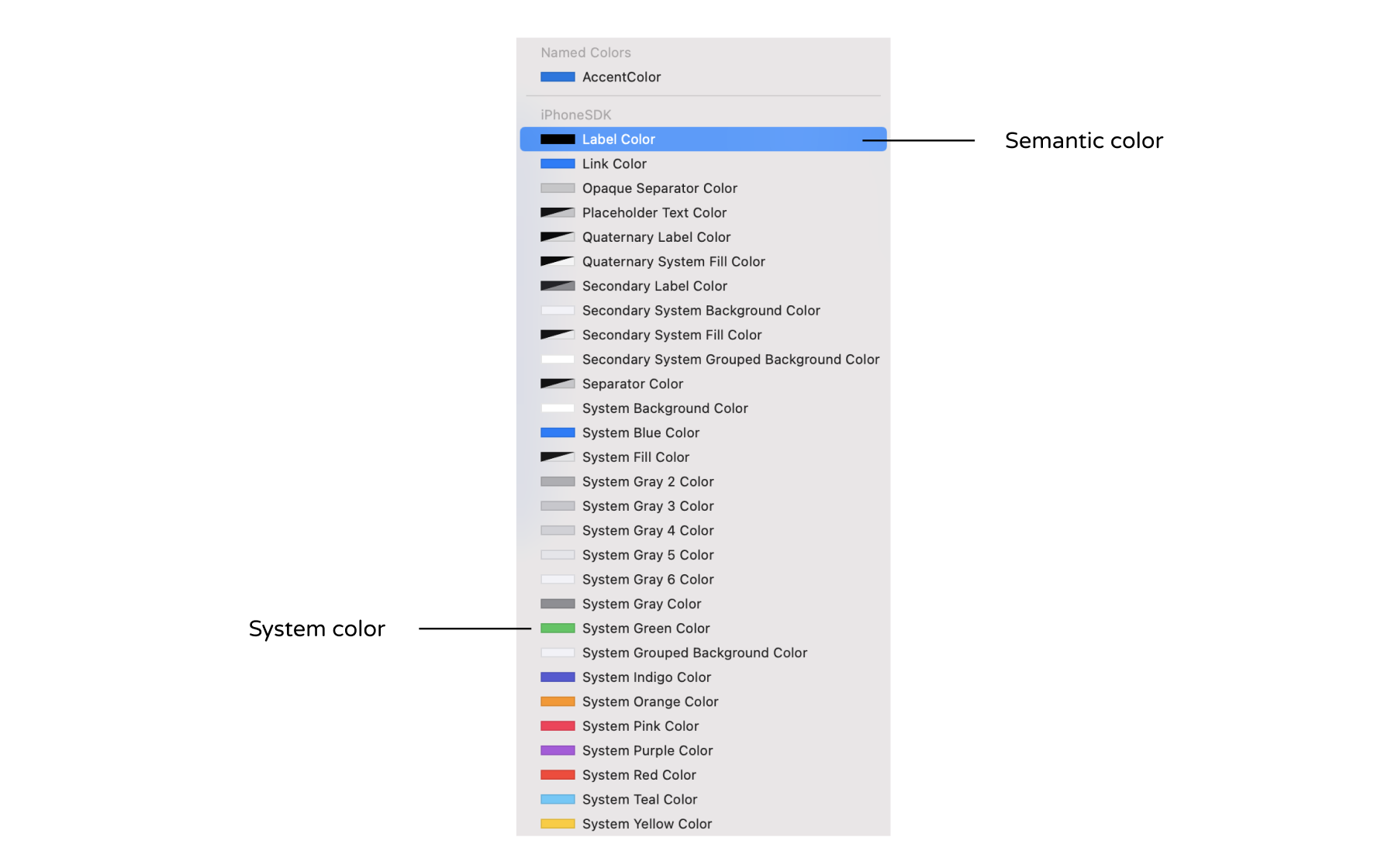
According to Apple, developers are encouraged to use system and semantic colors because it makes you a lot easier to support dark mode. You should avoid creating a UIColor object with hardcoded color values. That said, what if we want to use our own color instead of the built-in ones like the one we used for the navigation bar title?
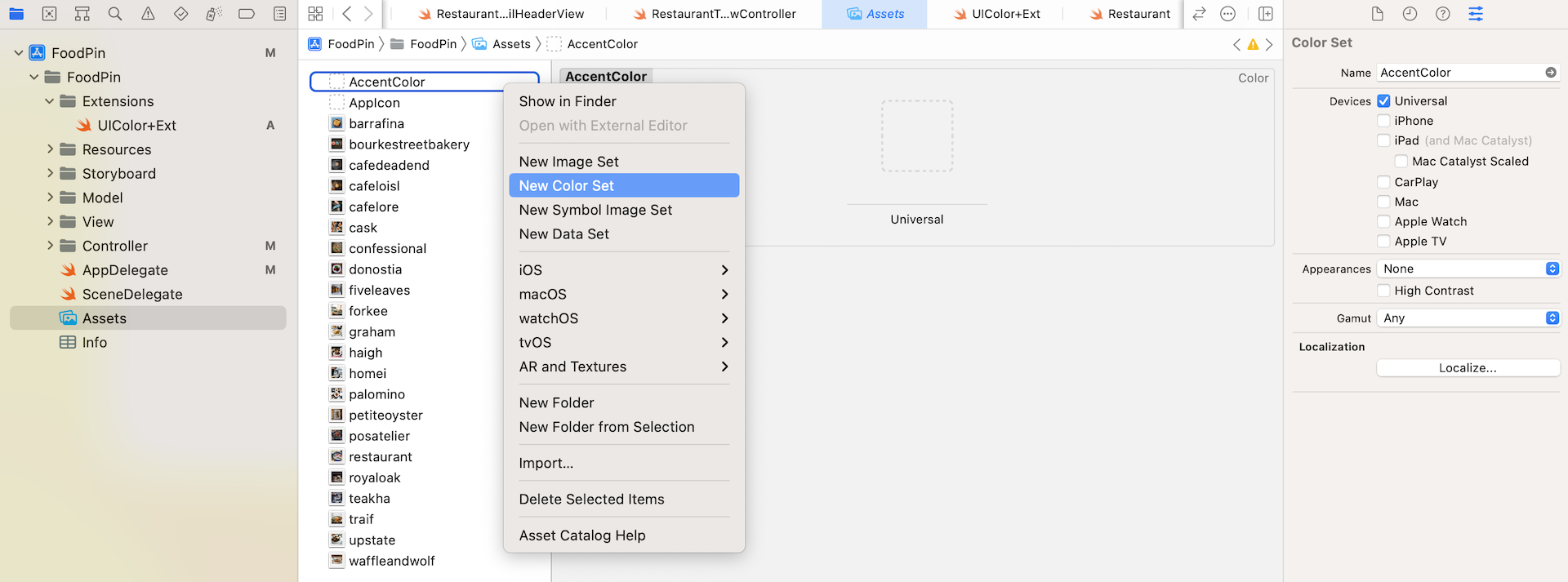
In the asset catalog, you can create your custom color that has different color values for light and dark appearance. Right any blank area in the asset catalog to bring up the context menu. Select New Color Set to add a new color set.
Name the color set NavigationBarTitle and then you will need to fill in two different color for Any Appearance and Dark Appearance. First, select Any Appearance and go to the Attributes inspector. Change the input method to 8-bit Hexidecimal and set the Hex value to #DA6033.
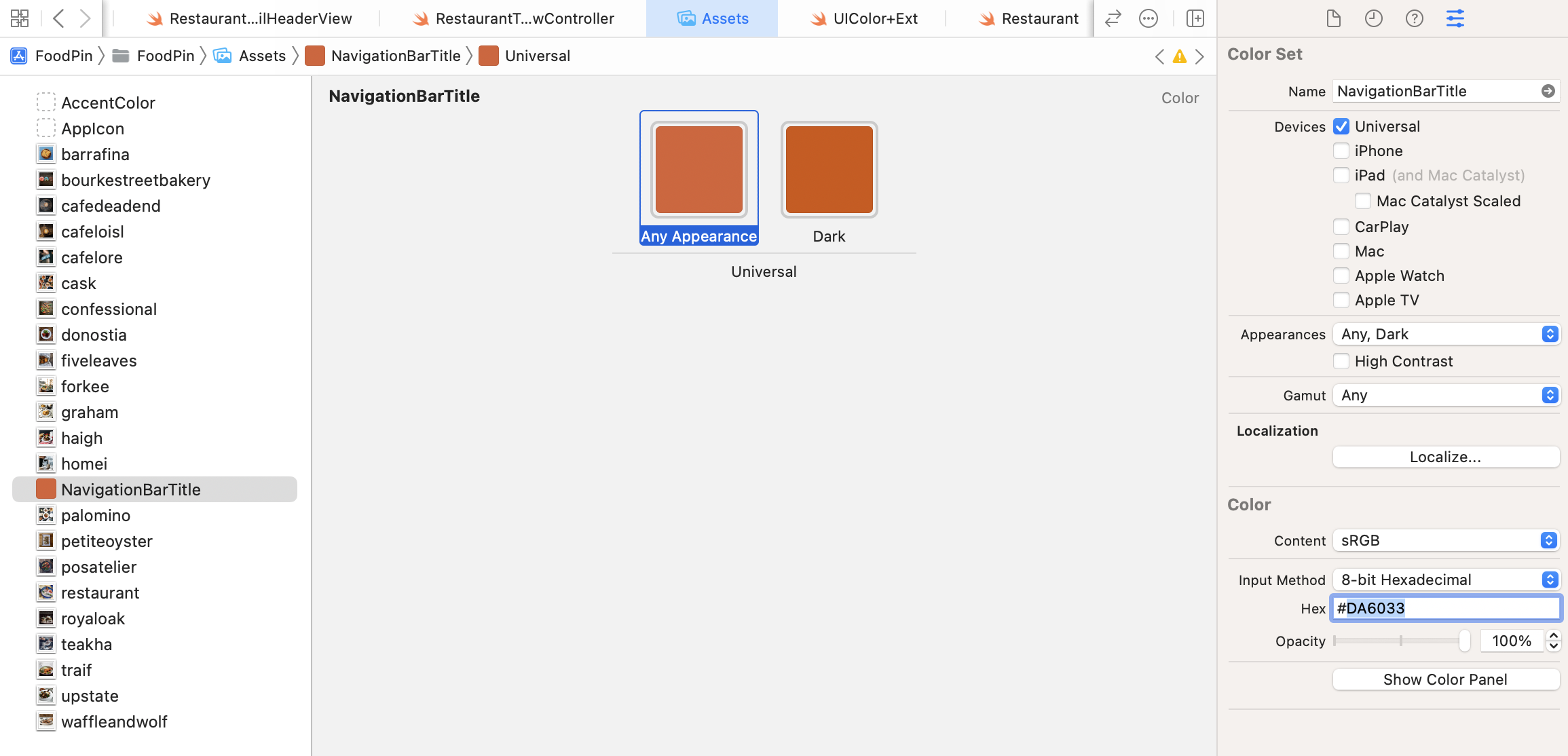
Repeat the same procedures but set the color for Dark Appearance. We use a different color value for this interface style, so set the Hex value to #D35400. This is how you define a custom semantic color.
To use this custom color, you can create the UIColor instance with the color name like this:
let color = UIColor(named: "NavigationBarTitle")!
Now you can replace the following lines of code in the viewDidLoad() method of RestaurantTableViewController:
appearance.titleTextAttributes = [.foregroundColor: UIColor(red: 218, green: 96, blue: 51, alpha: 1.0)]
appearance.largeTitleTextAttributes = [.foregroundColor: UIColor(red: 218, green: 96, blue: 51, alpha: 1.0), .font: customFont]
With:
appearance.titleTextAttributes = [.foregroundColor: UIColor(named: "NavigationBarTitle")!]
appearance.largeTitleTextAttributes = [.foregroundColor: UIColor(named: "NavigationBarTitle")!, .font: customFont]
Run the app to have a quick test. The navigation bar title now has different colors in light and dark mode.
Changing the Style of Status Bar
Now let's head back to the UI customization. The style of the status bar looks great on the home screen but doesn't go well with the restaurant image in the detail view. Wouldn't it be great if we can change the color of the status bar to white for the detail view?
The iOS SDK allows developers to use a UIStatusBarStyle constant to specify whether the status bar content should be dark or light. By default, the status bar displays dark content. In other words, items such as time, battery indicator and Wi-Fi signal are displayed in dark color.
You may want to change the style of status bar from dark to light to make the app look better. There are two ways to do this. You can change the status bar style for the entire application or just change the style of individual controllers.
Apparently, the status bar style varies from view controller to view controller for the FoodPin app. For the home screen, we want to keep the default style, while the status of the detail view should change to the light style.
Normally, to control the style of the status bar in any view controller, you can add the following code in your class to override the preferredStatusBarStyle property and return your preferred style:
override var preferredStatusBarStyle: UIStatusBarStyle {
    return .lightContent
}
You can insert the code above in the RestaurantDetailViewController class to have a try.
Unfortunately, the above code does not work in this case.
The reason is that the detail view controller is embedded in a navigation controller. iOS uses the default style specified in the navigation controller instead.
So how can we tell iOS to change the status bar style?
It is a bit tricky. You need to create a custom UINavigationController class and override its preferredStatusBarStyle property. In the project navigator, right click the Controller group and choose New File... Select the Cocoa Touch Class template and name the class NavigationController. Set the subclass to UINavigationController. Update the code like this:
class NavigationController: UINavigationController {

    override var preferredStatusBarStyle: UIStatusBarStyle {
        return topViewController?.preferredStatusBarStyle ?? .default
    }

}
We override the preferredStatusBarStyle property such that it returns the value of preferredStatusBarStyle of the top view controller. Here, the topViewController is the view controller at the top of the navigation stack. In the case of the detailed view, the RestaurantDetailViewController is the top view controller.
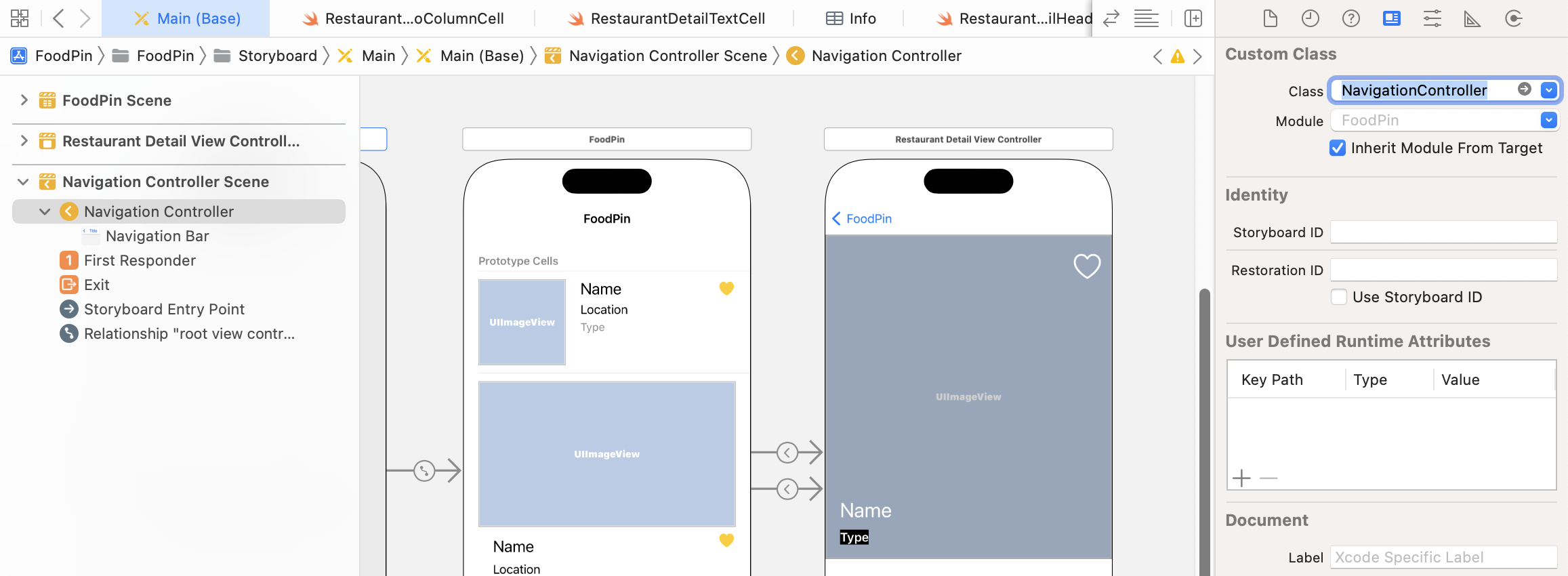
Lastly, switch over to the Main storyboard. We need to update the navigation controller to use our custom navigation controller. Select the Navigation Controller in the document view and then change the custom class in the Identity inspector.
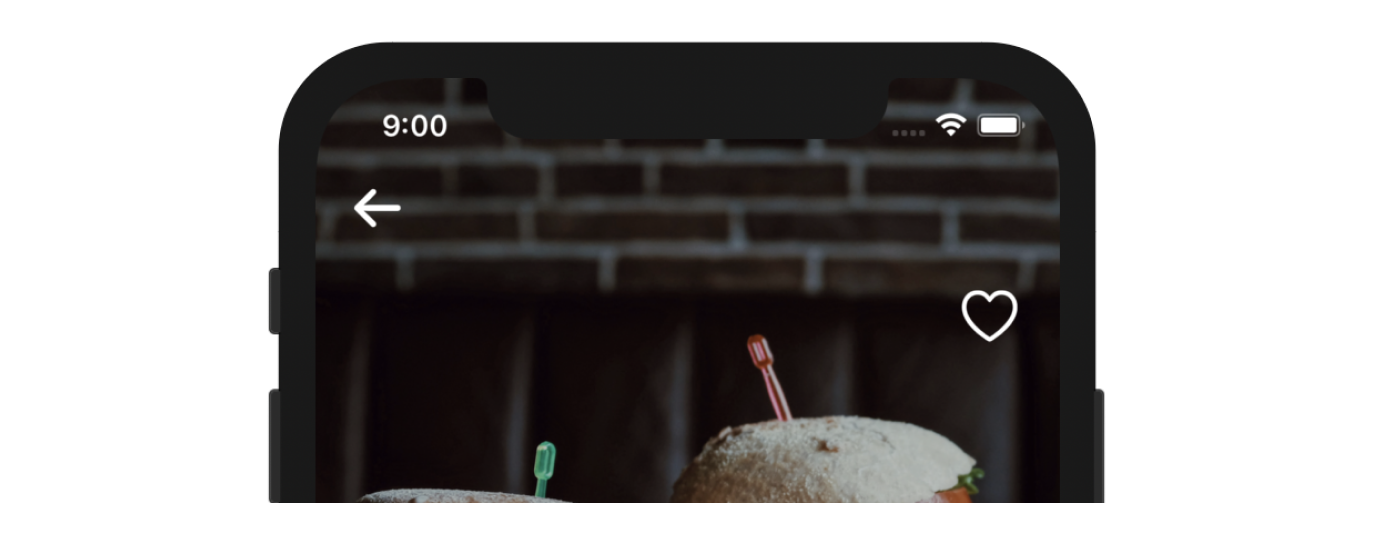
Now run the app again to see what you get. The status bar should be changed to white in the detailed view.
This is how you manage the status bar style for individual controllers. Though this is good enough for our app, I want to take a few minutes to show you how to change the style of the status bar across the entire application.
To do that, you can select the FoodPin project in the project navigator. In the General tab, you can change the status bar style to Light Content. This will change the status bar style for the entire application.
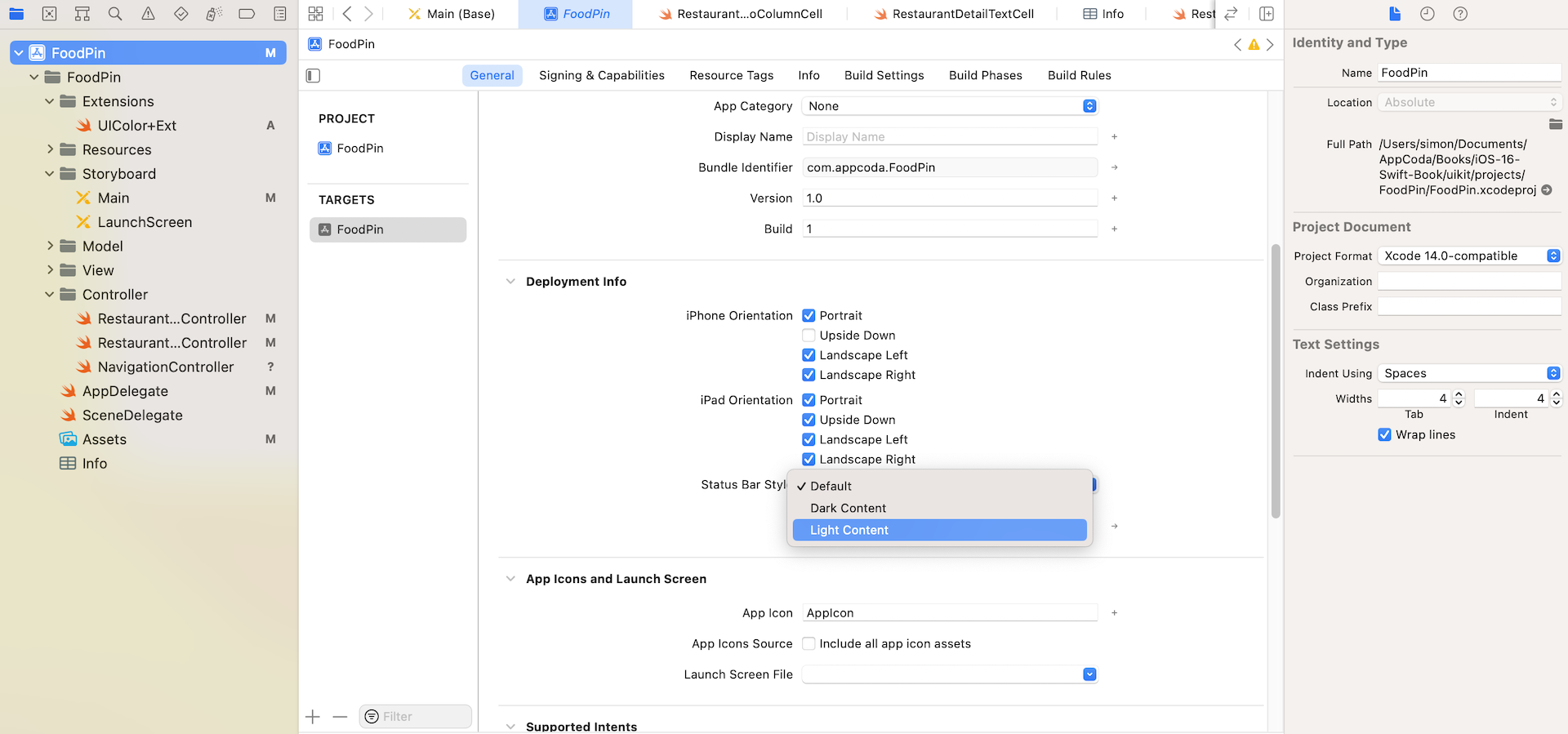
However, there is one thing you need to configure before this modification works.
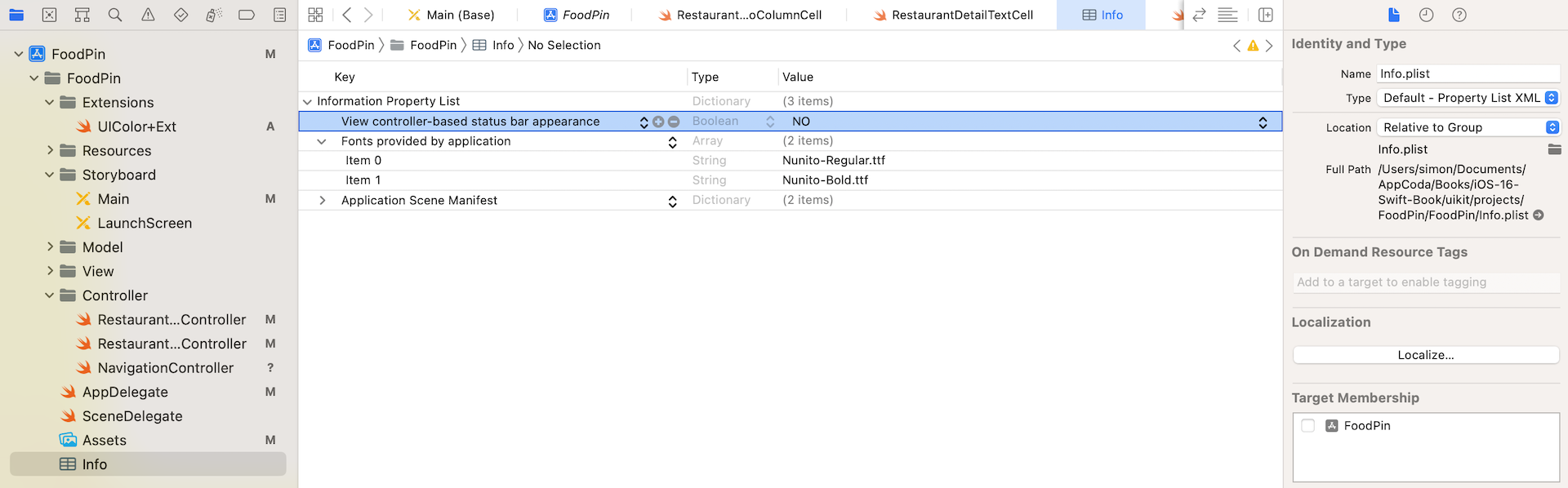
By default, the Xcode project is enabled to use "View controller-based status bar appearance". This means you can control the appearance of the status per view controller. If you want to change the style of the status bar globally, you need to opt out the View controller-based status bar appearance by modifying the Info.plist file.
Select the file to open it. Right click Information Property List and select Add Row. Insert a new key named View controller-based status bar appearance and set the value to NO. This instructs Xcode to use the status bar setting we set in the General tab earlier. Now the entire app will use the new status style.
Dynamic Type
What is Dynamic Type? You may not have heard of Dynamic Type but you should have seen the setting screen (Settings > Accessibility > Display & Text Size > Large Text or Settings > Display & Brightness > Text Size) shown in figure 15-14.

Dynamic Type is not new and has been introduced since iOS 7. With this feature, users are able to customize the text size of an app to fit their own needs. However, there is a catch - only apps that adopt Dynamic Type respond to the text change.
All of the stock apps have adopted Dynamic Type. For third party apps, it is up to developers' decision. Though Apple doesn't mandate developers to support Dynamic Type, it is always recommended so users can choose their own text size.
So how can you adopt Dynamic Type? As we have designed our views using auto layout, adopting Dynamic Type is just a piece of cake. Recalled that we configured all the labels to use text style, this is what you need to adopt Dynamic Type: use a text style instead of a fixed font type.

So, how can you test dynamic types using the built-in simulator? One way is to change the setting in the simulator by going to Settings > Accessibility > Display & Text Size > Large Text. Enable Larger Accessibility Sizes and drag the slider to your right to enlarge the font.
A more convenience approach is use the Environment Overrides option in Xcode. While running the app in simulators, click the Environment Overrides button and switch on the Text option. You can use the Dynamic Type slider to adjust the font size. In the simulator, the app should respond to the size change.
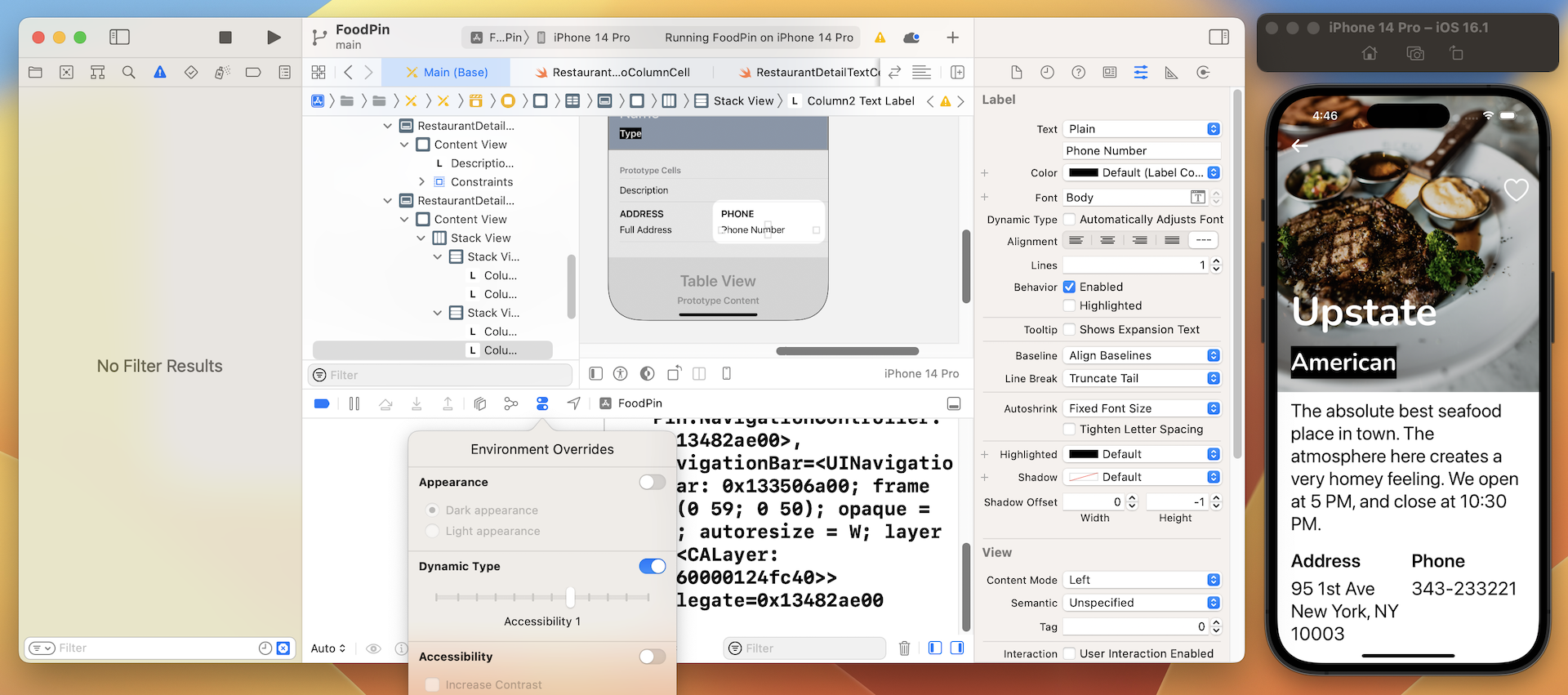
There is an issue with the current implementation. In the simulator, go to Settings > Accessibility > Display & Text Size > Large Text. Enable Larger Accessibility Sizes and increase the text size. Switch back to the simulator. You should find that the size of the labels remains unchanged. However, if you rerun the app again, the font size will change accordingly.
How can we fix that?
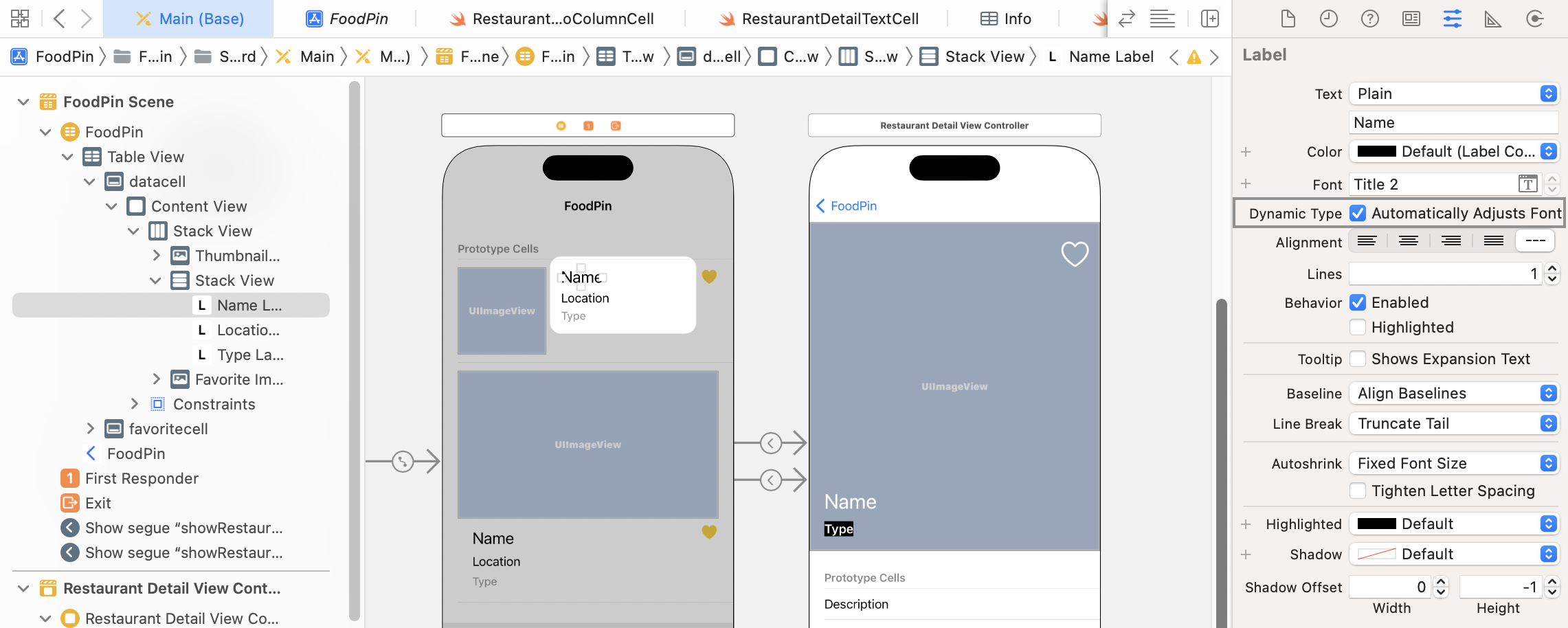
There is an option in text labels called Automatically Adjusts Font, which is disabled by default. When this option is enabled, it will listen to the change of the text size in the system settings and update to the new size automatically.
Go to Main and select the name label of the restaurant table view controller. In the Attributes inspector, enable the Automatically Adjusts Font option. Repeat the same procedures for other labels. By turning on the option, the label will be automatically resized whenever the user changes the preferred font size in Settings.
Alternatively, you can also apply the change by setting the adjustsFontForContentSizeCategory property of UILabel to true. Here is an example:
descriptionLabel.adjustsFontForContentSizeCategory = true
Exercise #2
Similar to exercise #1, this exercise is about bug fixing. Assuming you have tested the app for Dynamic Type, you should notice that the app doesn't work great for all font sizes. Here are the issues when you set the font size to maximum:
- In the main screen, the address is truncated when the font is enlarged.
- If the text is too long, the type label in the detailed view is truncated
- For iPad, the restaurant name in the detailed view cannot be fully displayed if the name is too long.
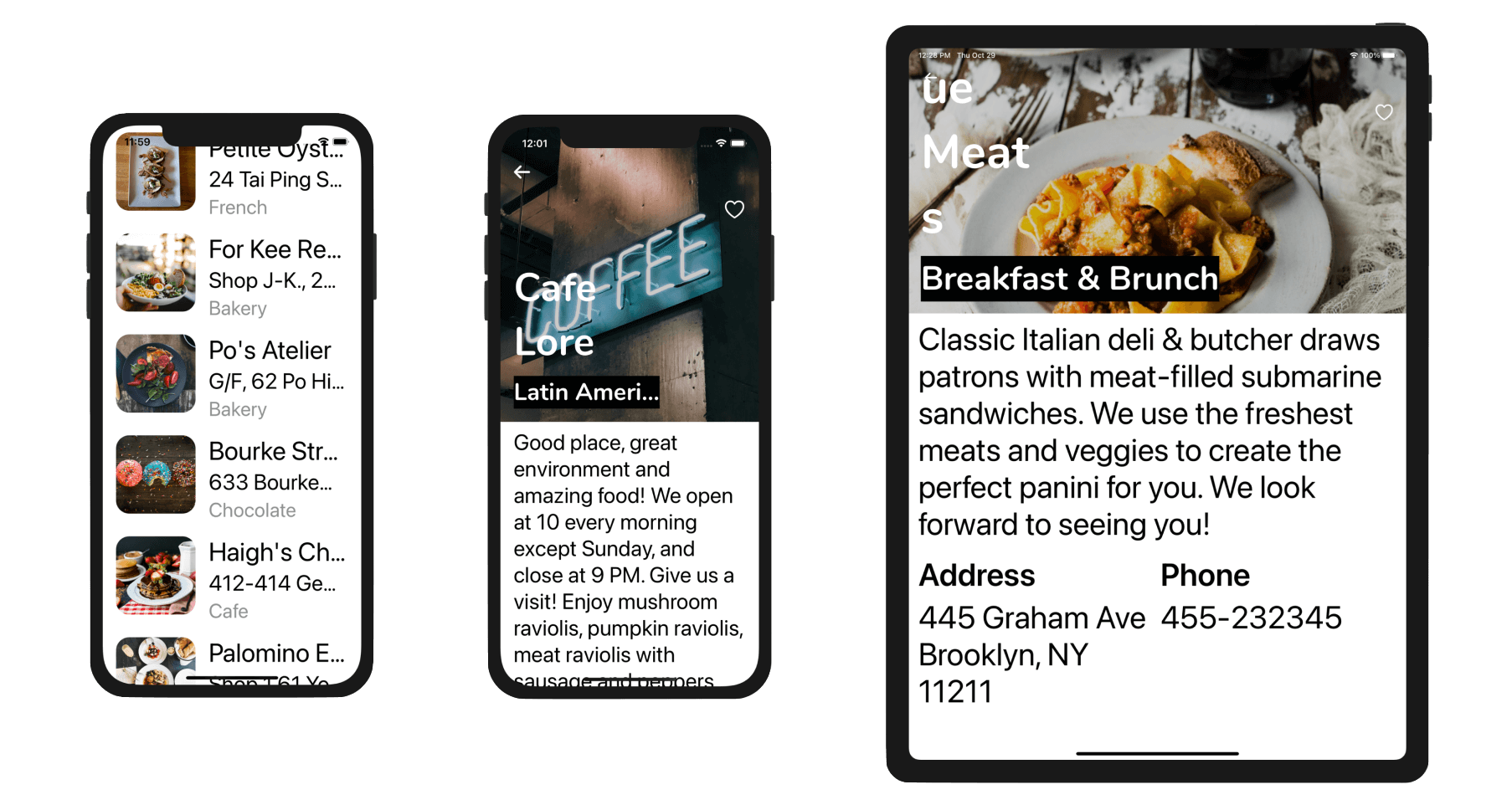
Based on what you have learned, try to fix all these issues. One of the issues is related to auto layout. You will need to alter a constraint specifically for the iPad devices.
Summary
In this chapter, you've learned how to customize the navigation bar and status bar. I have also covered Dynamic Color and Dynamic Type, which allows your users to choose their preferred font size. Apple encourages all iOS developers to adopt this technology because this gives your users a choice. For people with less acute vision, they probably prefer a larger text size. For some people, they may prefer a smaller text size. Whenever possible, try your best to support Dynamic Type in your apps.
For your reference, you can download the Xcode project (including the solution to exercise) from http://www.appcoda.com/resources/swift57/FoodPinNavCustomization.zip.
Reference: Apple's iOS Human Interface Guidelines (https://developer.apple.com/ios/human-interface-guidelines/visual-design/typography/)