- Made by AppCoda
- Contact us / Support
- Tweet this book
- Preface
- 1. The Development Tools, the Learning Approach, and the App Idea
- 2. Your First Taste of Swift with Playgrounds
- 3. Hello World! Build Your First App in Swift
- 4. Hello World App Explained
- 5. Introduction to Auto Layout
- 6. Designing UI Using Stack Views
- 7. Introduction to Prototyping
- 8. Creating a Simple Table-based App
- 9. Customize Table Views Using Prototype Cell, Diffable Data Source and Dark Mode
- 10. Displaying Alerts with UIAlertController and Handling Table View Selection
- 11. Object Oriented Programming, Project Organization and Code Documentation
- 12. Table Row Deletion, Custom Action Button and MVC
- 13. Introduction to Navigation Controller and Segue
- 14. Detail View Enhancement and Navigation Bar Customization
- 15. Navigation Bar Customization, Extensions and Dynamic Type
- 16. Working with Maps
- 17. Basic Animations, Visual Effects and Unwind Segues
- 18. Working with Static Table Views, Camera and NSLayoutConstraint
- 19. Working with Core Data
- 20. Search Bar and UISearchController
- 21. Building Walkthrough Screens with UIPageViewController and Container Views
- 22. Exploring Tab Bar Controller and Storyboard References
- 23. Getting Started with WKWebView and SFSafariViewController
- 24. Exploring CloudKit
- 25. Localizing Your App to Reach More Users
- 26. Deploying and Testing Your App on a Real iOS Device
- 27. Beta Testing with TestFlight and CloudKit Production Deployment
- 28. Submit Your App to App Store
- 29. Adopting 3D Touch, Haptic Touch and Context Menus
- 30. Developing User Notifications in iOS
- 31. Appendix - Swift Basics
- Published with GitBook
Chapter 24
Exploring CloudKit

The most impressive people I know spent their time with their head down getting shit down for a long, long time.
- Sam Altman
Let's start with some history. When Steve Jobs unveiled iCloud to complement iOS 5 and OS X Lion at Apple's annual Worldwide Developers Conference (WWDC) in 2011, it gained a lot of attention but came as no surprise. Apps and games could store data on the cloud and have it automatically synchronize between Macs and iOS devices.
But iCloud fell short as a cloud server.
Developers are not allowed to use iCloud to store public data for sharing. It is limited to sharing information between multiple devices that belong to the same user. Take our Food Pin app as an example - you can't use the classic version of iCloud to store your favorite restaurants publicly and make them available for other app users. The data, that you store on iCloud, can only be read by you.
If you wanted to build a social app to share data amongst users at that time, you either came up with your home-brewed backend server (plus server-side APIs for data transfer, user authentication, etc) or relied on other cloud service providers such as Firebase and Parse.
Note: Parse was a very popular cloud service at the time. But Facebook announced the demise of the service on January 28, 2016.
In 2014, the company reimagined iCloud functionality and offered entirely new ways for developers, as well as, users to interact with iCloud. The introduction of CloudKit represents a big improvement over its predecessor and the offering is huge for developers. You can develop a social networking app or add social sharing features easily using CloudKit.
What if you have a web app and you want to access the same data on iCloud as your iOS app? Apple further takes CloudKit to the next level by introducing CloudKit web services or CloudKit JS, a JavaScript library. You can develop a web app with the new library to access the same data on iCloud as your app.
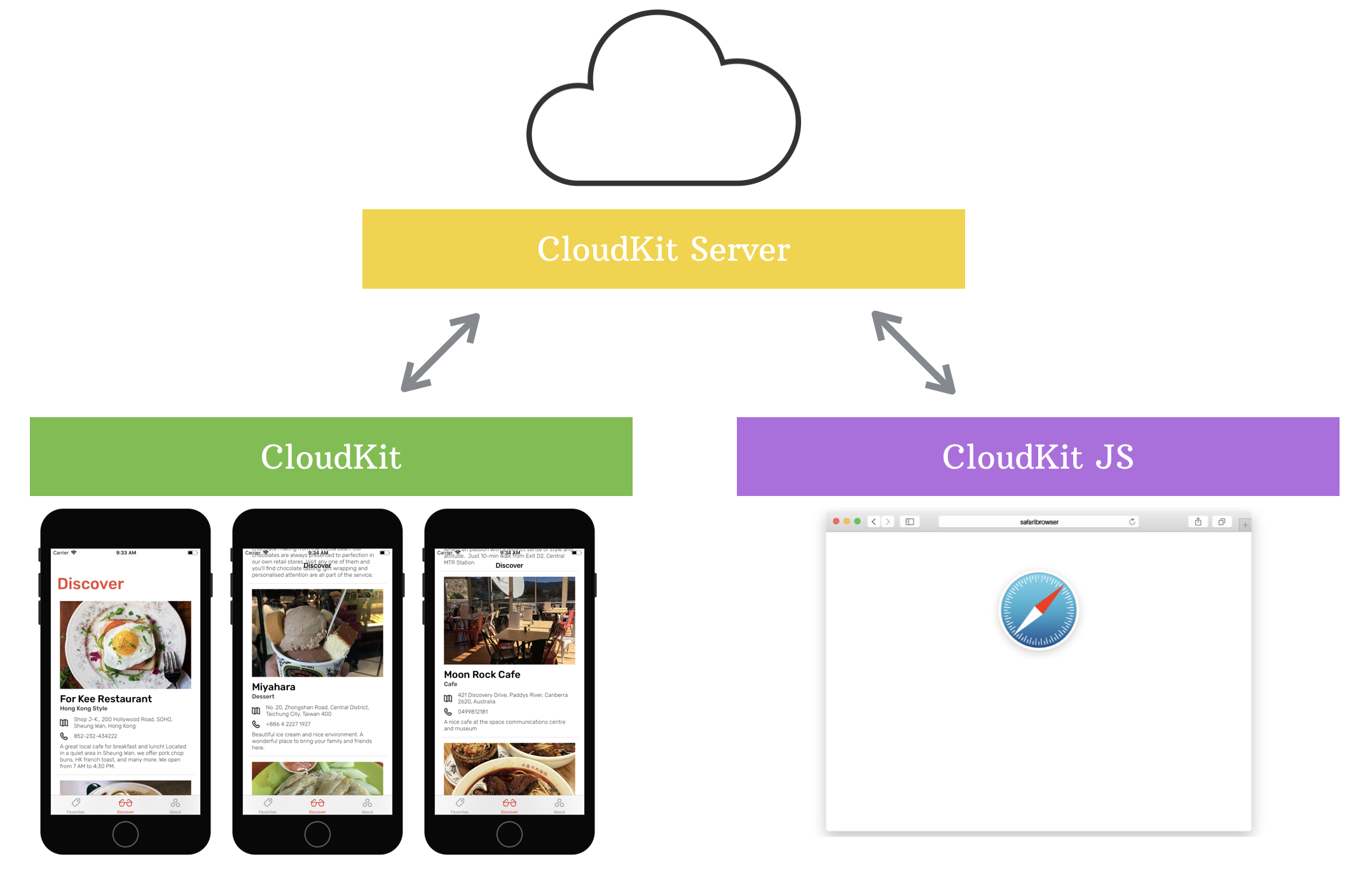
In WWDC 2016, Apple announced the introduction of Shared Database. Not only can you store your data publicly or privately, CloudKit now lets you store and share the data with a group of users.
CloudKit makes developers' lives easier by eliminating the need to develop our own server solutions. With minimal setup and coding, CloudKit empowers your app to store data, including structured data and assets, in the cloud.
Best of all, you can get started with CloudKit for free (with limits). It starts with:
- 10GB for assets (e.g. images)
- 100MB for database
- 2GB for data transfer
As your app becomes more popular, the CloudKit storage grows with you and adds an additional 250MB for every single user. For each developer account, you can scale all the way up to the following limits:
- 1PB assets
- 10TB database
- 200TB data transfer
That's a massive amount of free storage and is sufficient for the vast majority of apps. According to Apple, the storage should be enough for about 10 million free users.
With CloudKit, we were able to focus on building our app and even squeeze in a few extras.
- Hipstamatic
In this chapter, I will walk you through the integration of iCloud using the CloudKit framework. But we will only focus on the Public database.
As always, you will learn the APIs by implementing a feature of the FoodPin app. We will enhance the app to let users share their favorite restaurants anonymously, and all users can view other's favorites in the Discover tab. It's going to be fun.
There is a catch, however. You have to enroll in the Apple Developer Program (USD99/year). Apple opens up the CloudKit storage for paid developers only. If you're serious about creating your app, it's time to enroll in the program and build some CloudKit-based apps.
Understanding CloudKit Framework
CloudKit is not just about storage. Apple provides the CloudKit framework for developers to interact with iCloud. The CloudKit framework offers services for managing the data transfer to and from iCloud servers. It's a transfer mechanism that takes your user's app data from the device and transfers it to the cloud.
Importantly, CloudKit doesn't provide any local persistence and it only provides minimal offline caching support. If you need caching to persist the data locally, you should develop your own solution.
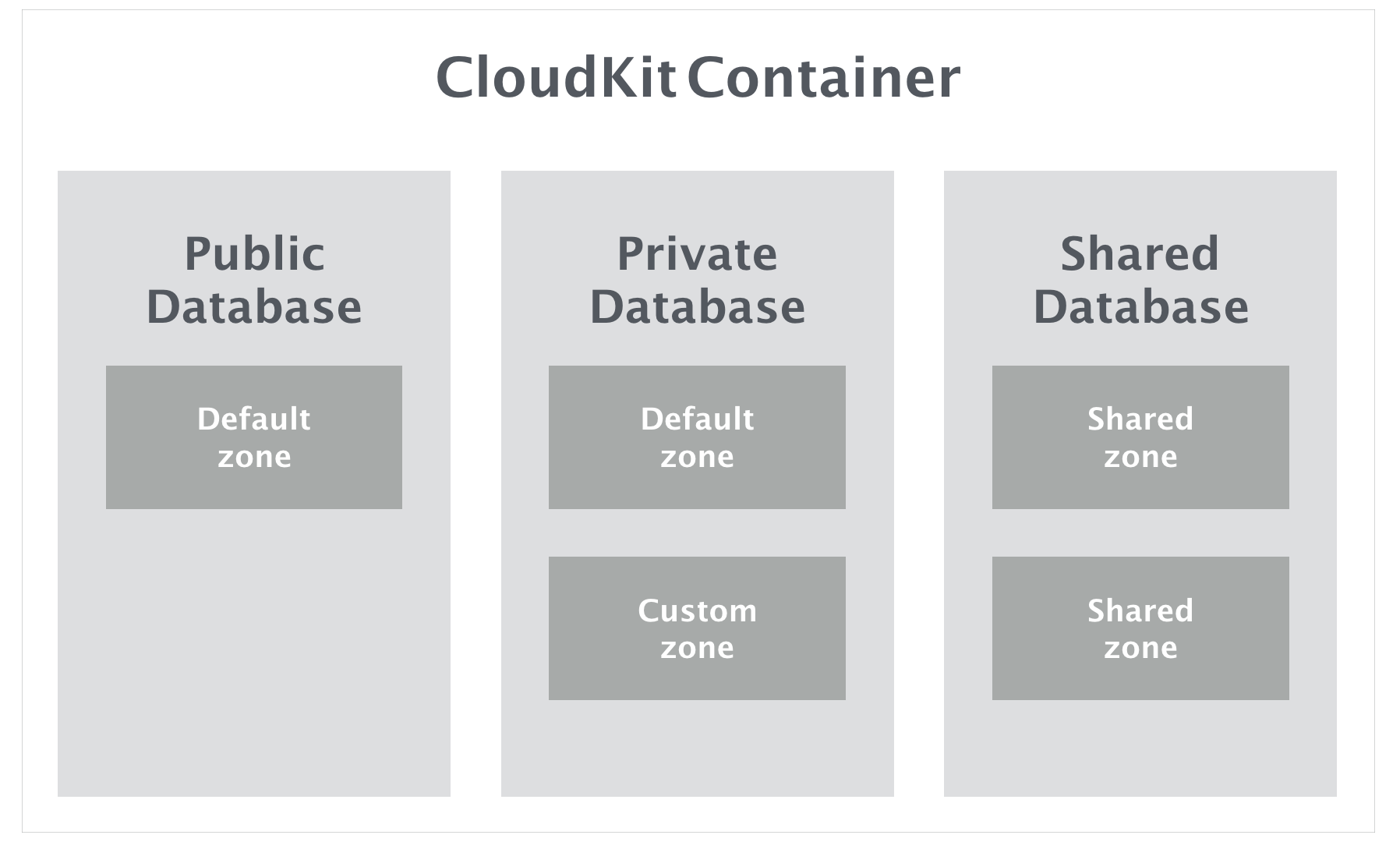
Containers and databases are the fundamental elements of the CloudKit framework. Every app has its own container for managing its content. By default, one app talks to one container. The container is exposed as the CKContainer class.
Inside a container, it contains a public database, a shared database and a private database for storing data. As the name suggests, the public database is accessible by all users of the app and is designed to store shared data. Data stored in the private database is visible to a single user, while data stored in the shared database (introduced in iOS 10) can be shared among a group of users.
Apple lets you choose the type of database that best fits your app. For example, if you're developing an Instagram-like app, you can use the public database to save photos uploaded by users. Or if you're creating a To-do app, you probably want to use the private database to store the to-do items per user. The public database doesn't require users to have an active iCloud account unless you need to write data to the public database. Users need to log into the iCloud before accessing its private database. In the CloudKit framework, the database is exposed as the CKDatabase class.
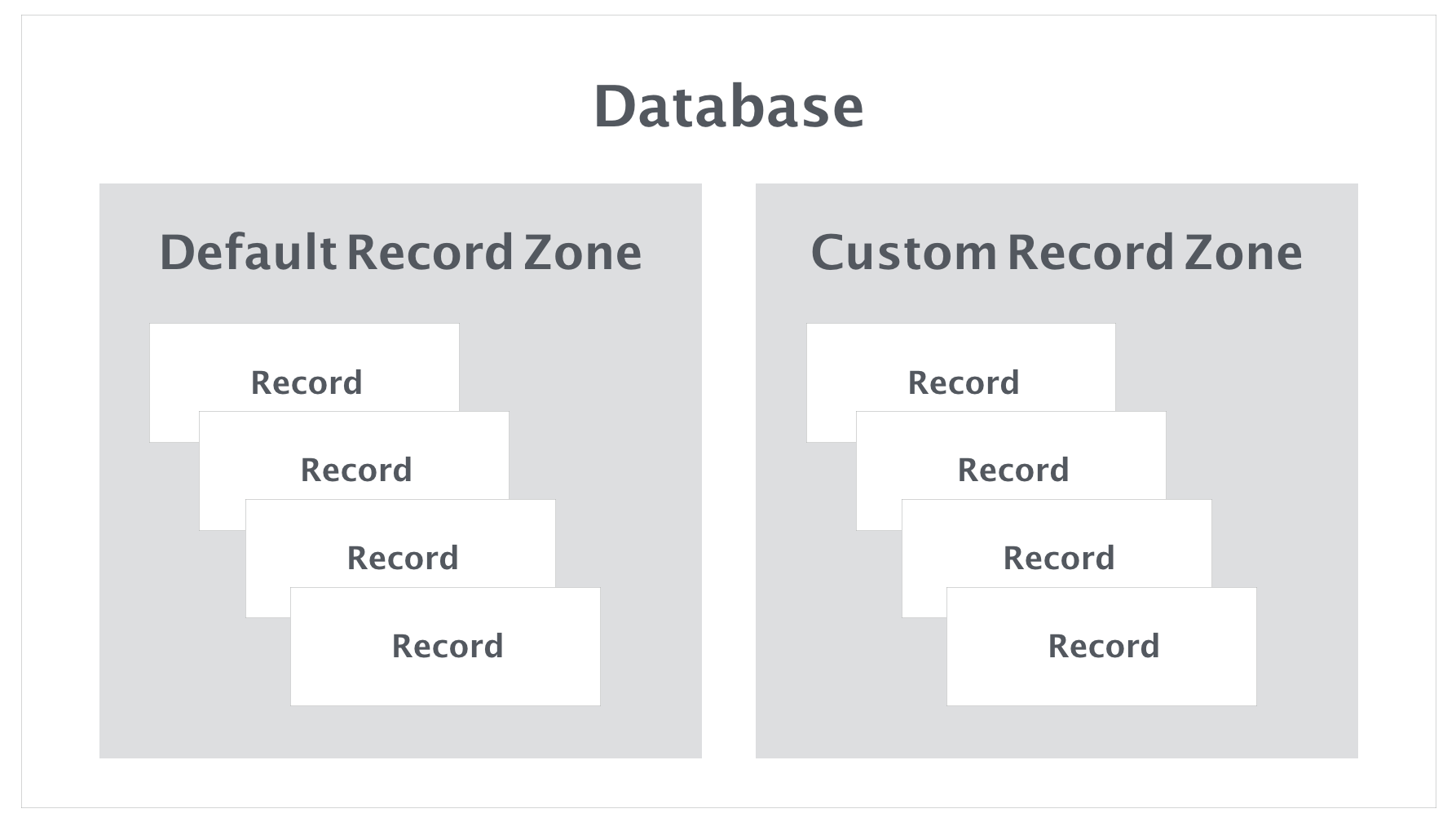
Navigating further down the hierarchy is Record Zone. CloudKit does not store data loosely. Instead, records of data are partitioned into different Record Zones. Depending on the type of database, it supports different types of record zone. Both private and public databases have a default zone. It is good enough for most scenarios. That said, you're allowed to create custom zones if needed. Record Zone is exposed as the CKRecordZone class in the framework.
At the heart of the data, a transaction is a Record, represented by the CKRecord class. A Record is essentially a dictionary of key-value pairs. The key represents a record field. The associated value of a key is the value of a specific record field. Each record has a record type. The record type is defined by developers in the CloudKit dashboard. Meanwhile, you may be confused about all these terms. No worries. You will understand what they mean after going through a working demo.
Now that you have some ideas about the CloudKit framework, let's get started and build the Discover tab. By integrating the app with CloudKit, you'll learn:
- How to enable CloudKit in your app
- How to use CloudKit Dashboard to create your records in the cloud
- How to fetch records asynchronously from iCloud using the convenience API
- How to fetch records from iCloud servers using the operational APIs
- How to improve app performance using lazy loading
- How to cache images using NSCache
- How to save data to iCloud servers
Enabling CloudKit in Your App
Assuming you have enrolled in the Apple Developer Program, the first task is to register your account in the Xcode project.
Note: In the project navigator, select the FoodPin project and then select FoodPin under targets. If you are usingcom.appcoda.FoodPinas the bundle identifier, you will need to change it to something else. Say,[your domain].FoodPin. If you don't own a domain, you may use[your name].FoodPin. Later, CloudKit will use the bundle identifier to generate the container. Because the name space of containers is global to all developers, you have to ensure the name is unique.
Under the Signing & Capabilities tab, if you haven't assigned a developer account in the Signing section, simply click the dropdown box of the Team option. Select Add an account, you'll be prompted to log in with your developer account. Follow the procedures and your developer account will appear in the Team option.
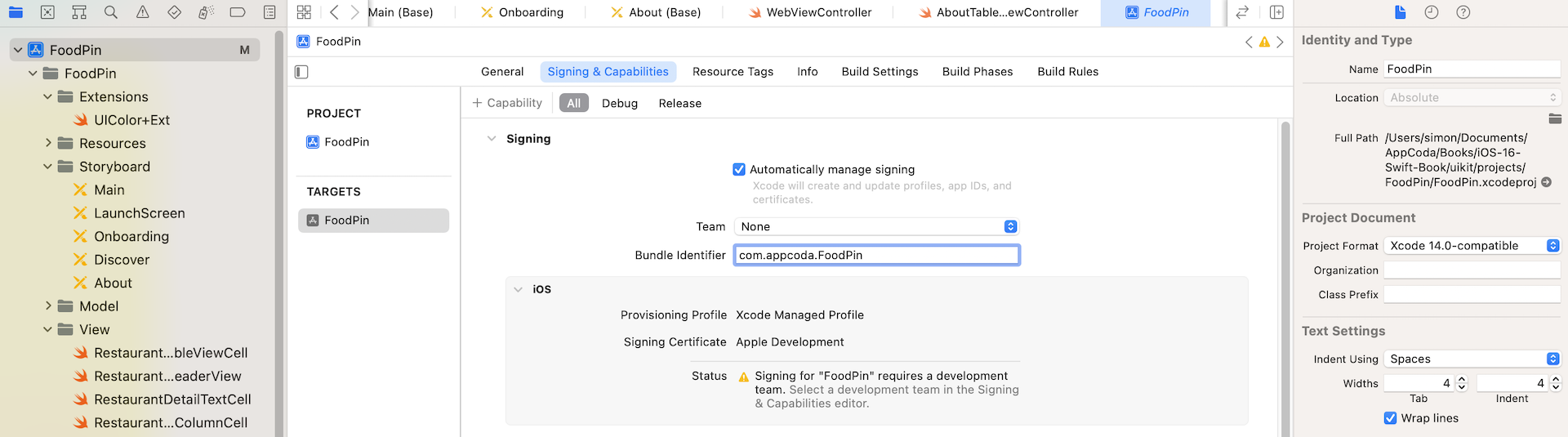
Assuming you have the identity and bundle identifier configured, click the +Capability button. To enable CloudKit, all you need to do is add the iCloud module to your project. And then select CloudKit in the services option.
For containers, click the + button in the Containers section to create a new container. The naming convention is like this:
iCloud.com.[bundle-ID]
For me, I used iCloud.com.appcoda.FoodPinV6. As soon as you confirm, Xcode automatically creates the container on the CloudKit server and adds the necessary frameworks in the project. It may take a few minutes for Xcode to create the container on the cloud for you. If the container is not ready, it's displayed in red. You can click the reload button until the container changes to black.
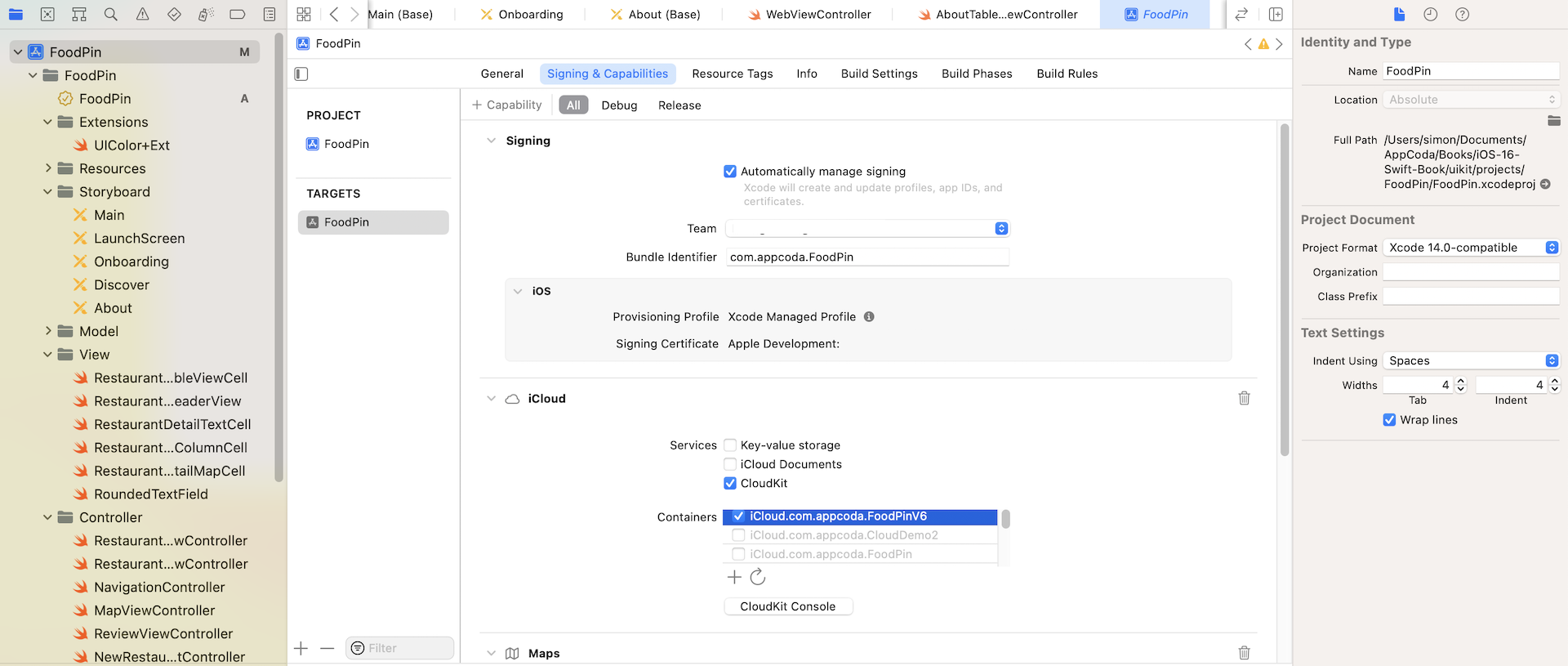
Quick tip: If you experience the error "An App ID with identifier is not available. Please enter a different string.", you may need to choose another bundle identifier.
Managing Your Record in CloudKit Dashboard
You can click the CloudKit Console button to open a web-based dashboard. Click the CloudKit Database button and you should see the iCloud container with the name "iCloud.com.appcoda.FoodPinV6. The name of the iCloud container is iCloud.com.appcoda.FoodPinV6. In case if you can't see the cloud container of your choice, you can click on the down arrow next to the container name and choose the correct container.
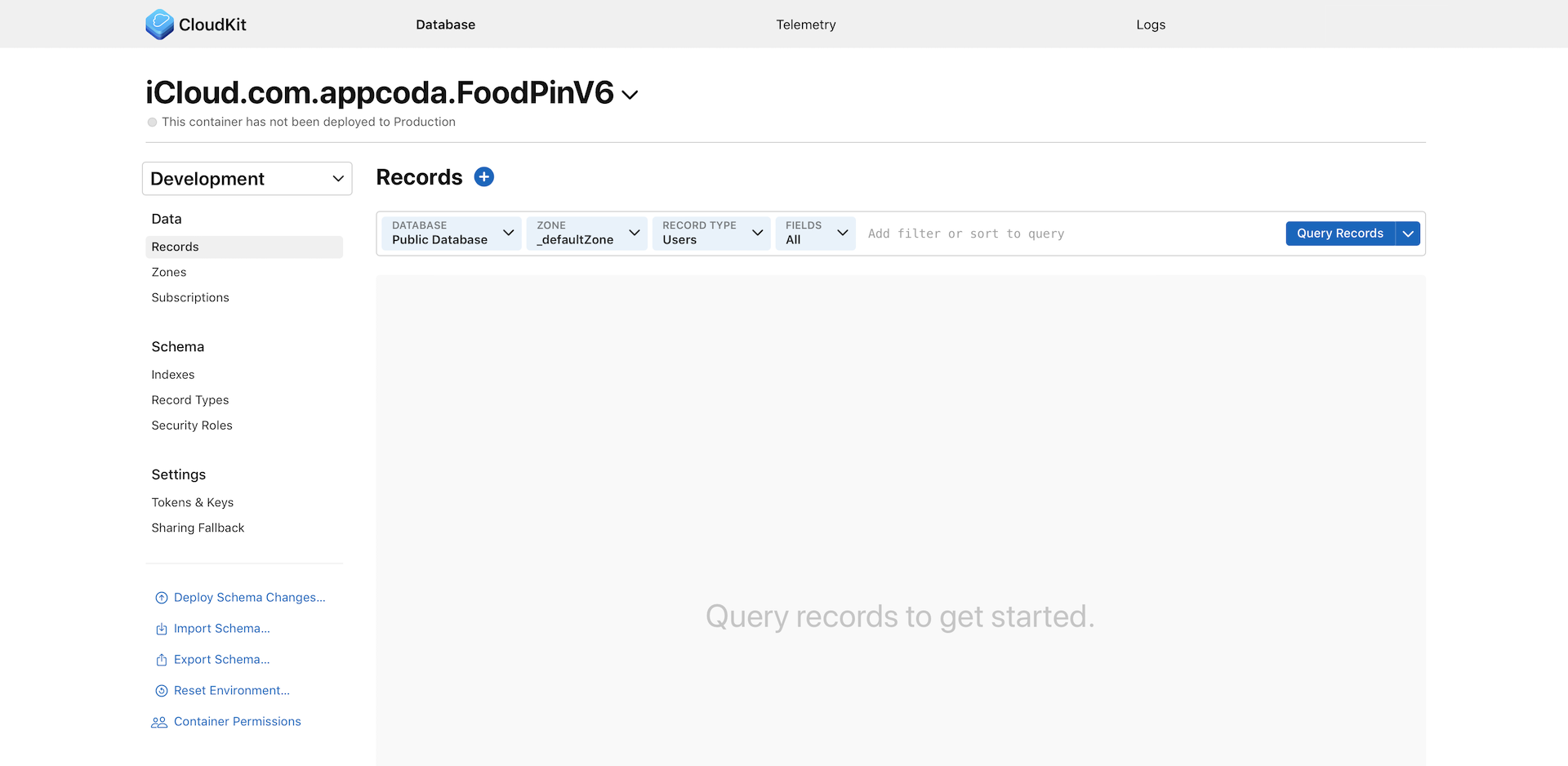
The cloud container has two environments: Development and Production. Production is the live environment that is used when your app is released to public users. Development, as the name suggests, is used when you are developing the app or for testing. You should choose the development environment for development purpose.
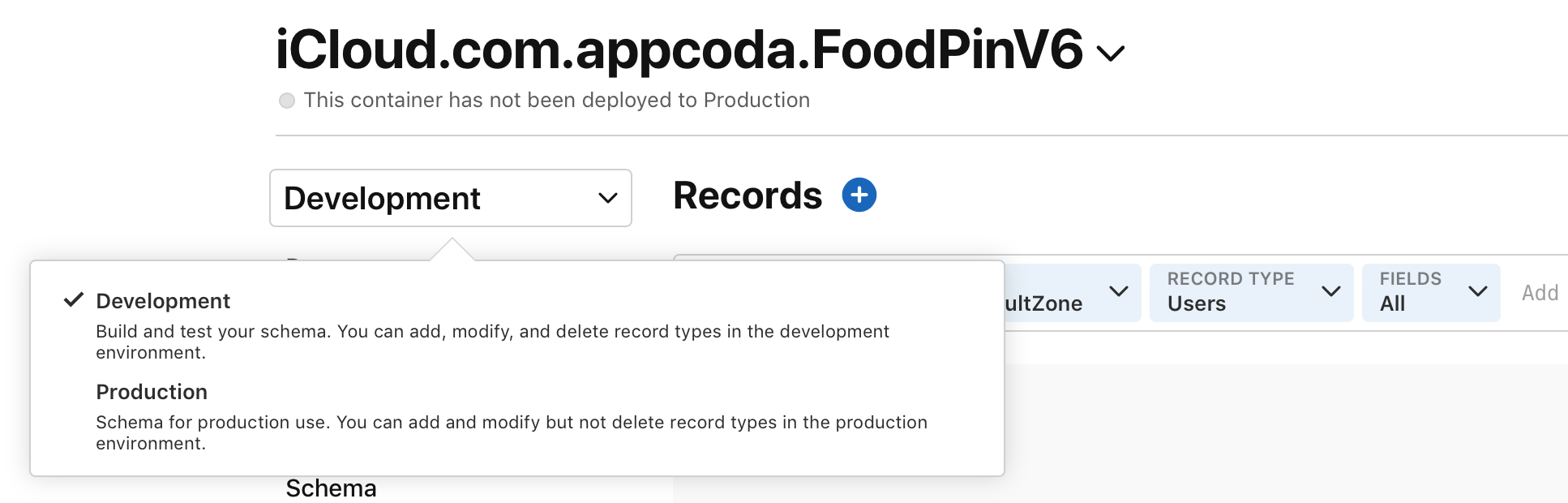
This dashboard lets you manage your container and perform operations like adding record types and removing records.
Before your app can save restaurant records to the cloud, you first need to define a record type. Do you remember that we created a Restaurant entity when working with Core Data? A record type in CloudKit is equivalent to an entity in Core Data.
In the side menu of the dashboard, select Record Types and then click + to create a new record type. Name the record type Restaurant. Once you created the record type, CloudKit dashboard will show you some system fields such as createdBy and createdAt.
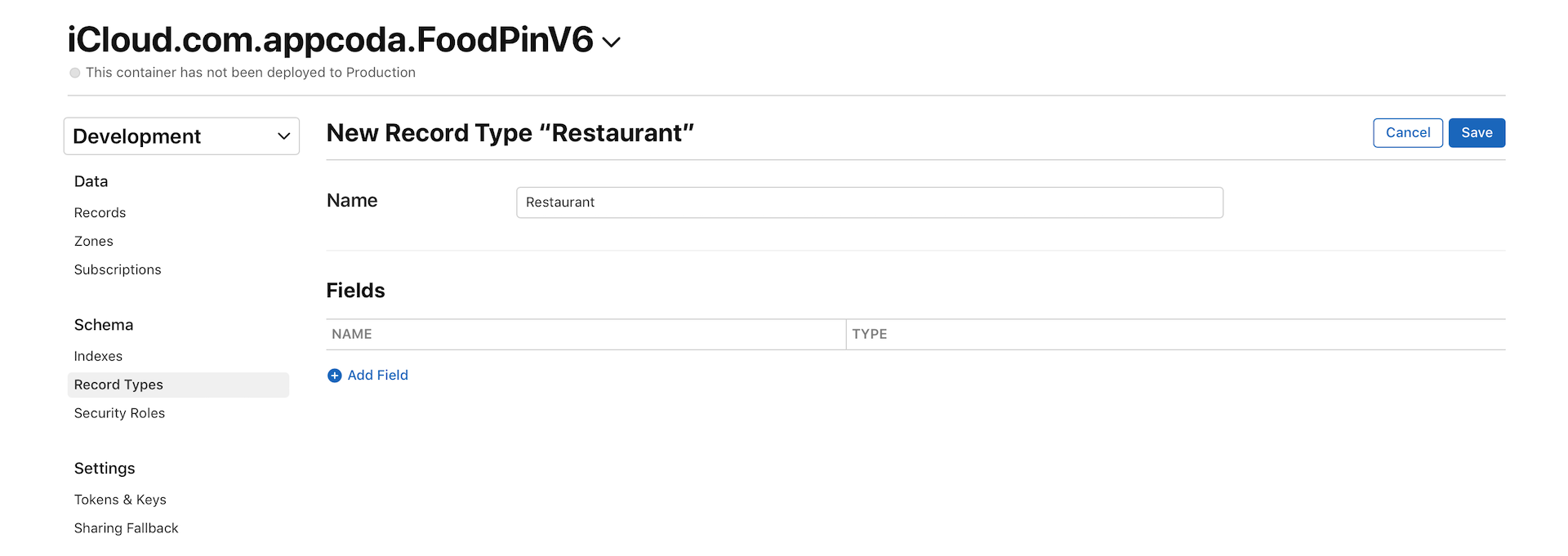
You can define your own field name and type for the Restaurant record type. CloudKit supports various attribute types such as String, Date/Time, Double and Location. If you need to store binary data like image, you use the Asset type.
Now click the Add Field button and add the following field names/types for the Restaurant record type:
| Field Name | Field Type |
|---|---|
| name | String |
| type | String |
| location | String |
| phone | String |
| description | String |
| image | Asset |
Once you finish adding your own fields, don't forget to click the Save Changes button to confirm the changes.
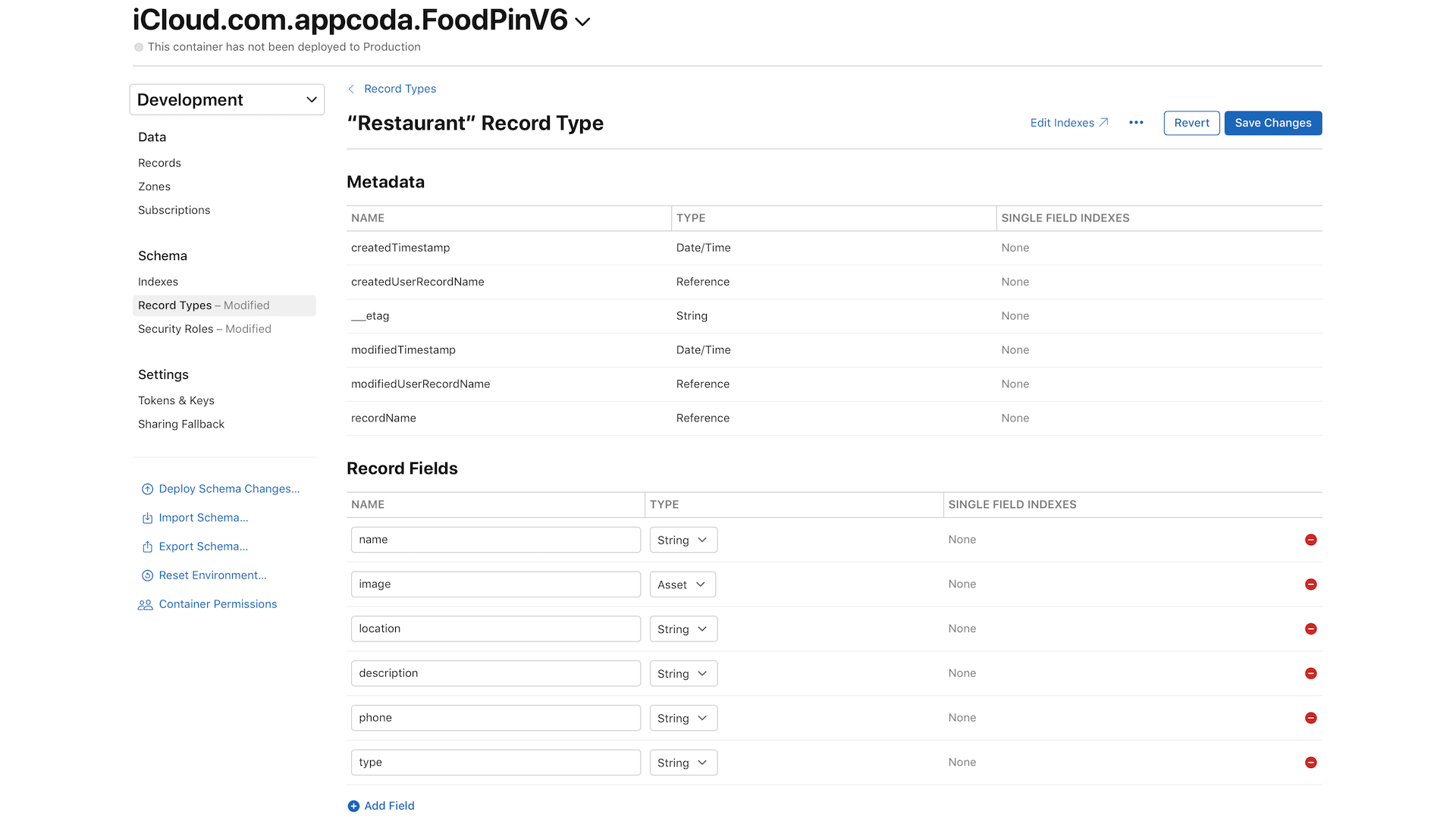
Note: CloudKit uses asset objects to incorporate external files such as image, sound, video, text, and binary data files. An asset is exposed as the CKAsset class and associated with a record. When saving an asset, CloudKit only stores the asset data. It does not store the filename. Other than images, you can configure the sort, query and search options for the rest of the fields.
With the record type configured, it's ready for your app to upload the restaurant records to iCloud. You have two ways to add records to the database:
You either create the records through the CloudKit APIs.
Or you add the records via the CloudKit dashboard.
Let's try to populate some records using the dashboard. In the sidebar menu, choose Records to go back to the records panel. Please make sure the Public Database option is selected.
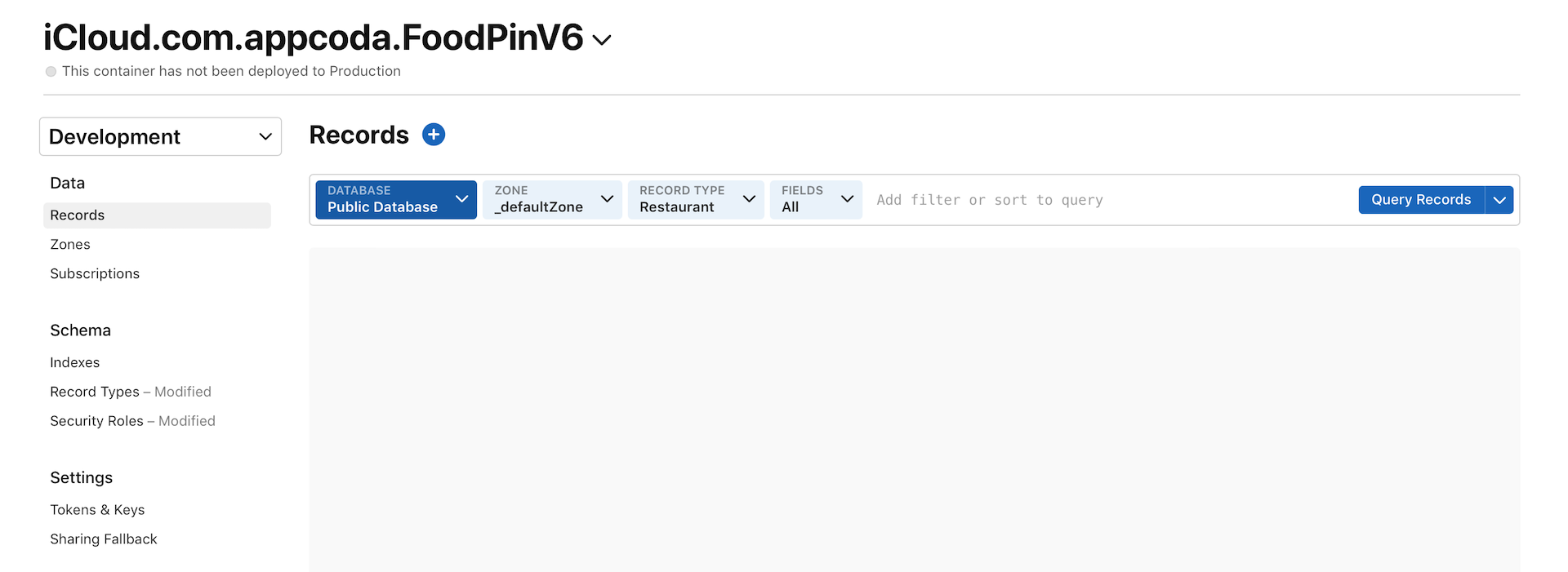
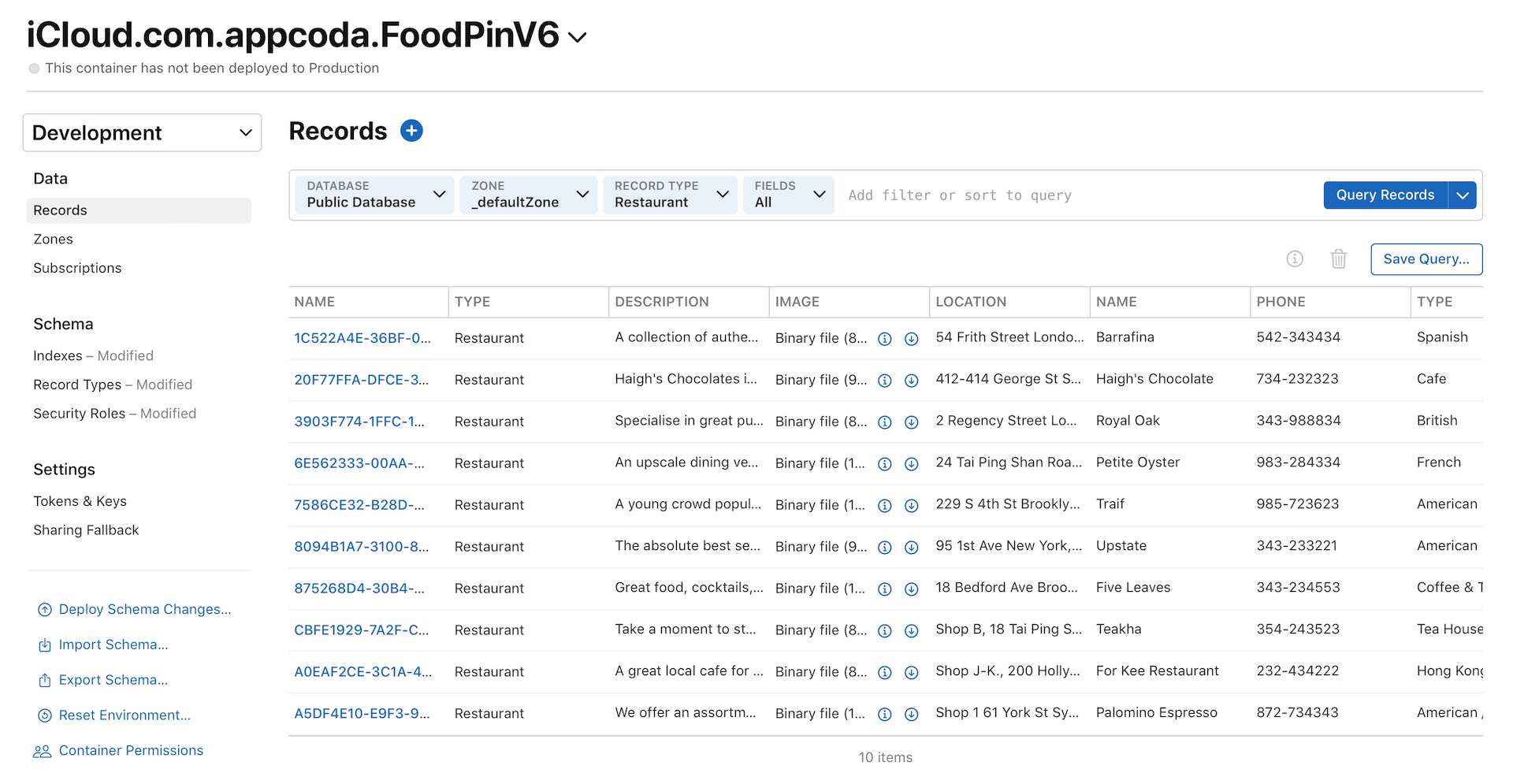
For the zone option, please also make sure the _defaultZone is selected. This is the default record zone of your public database. For the record type, set it to Restaurant. By default, the zone doesn't contain any records. You can click the + button to create one. Simply key in the name, type, location, phone, description, and upload your image. Then click Save to save the record. Figure 24-11 shows a sample new record.
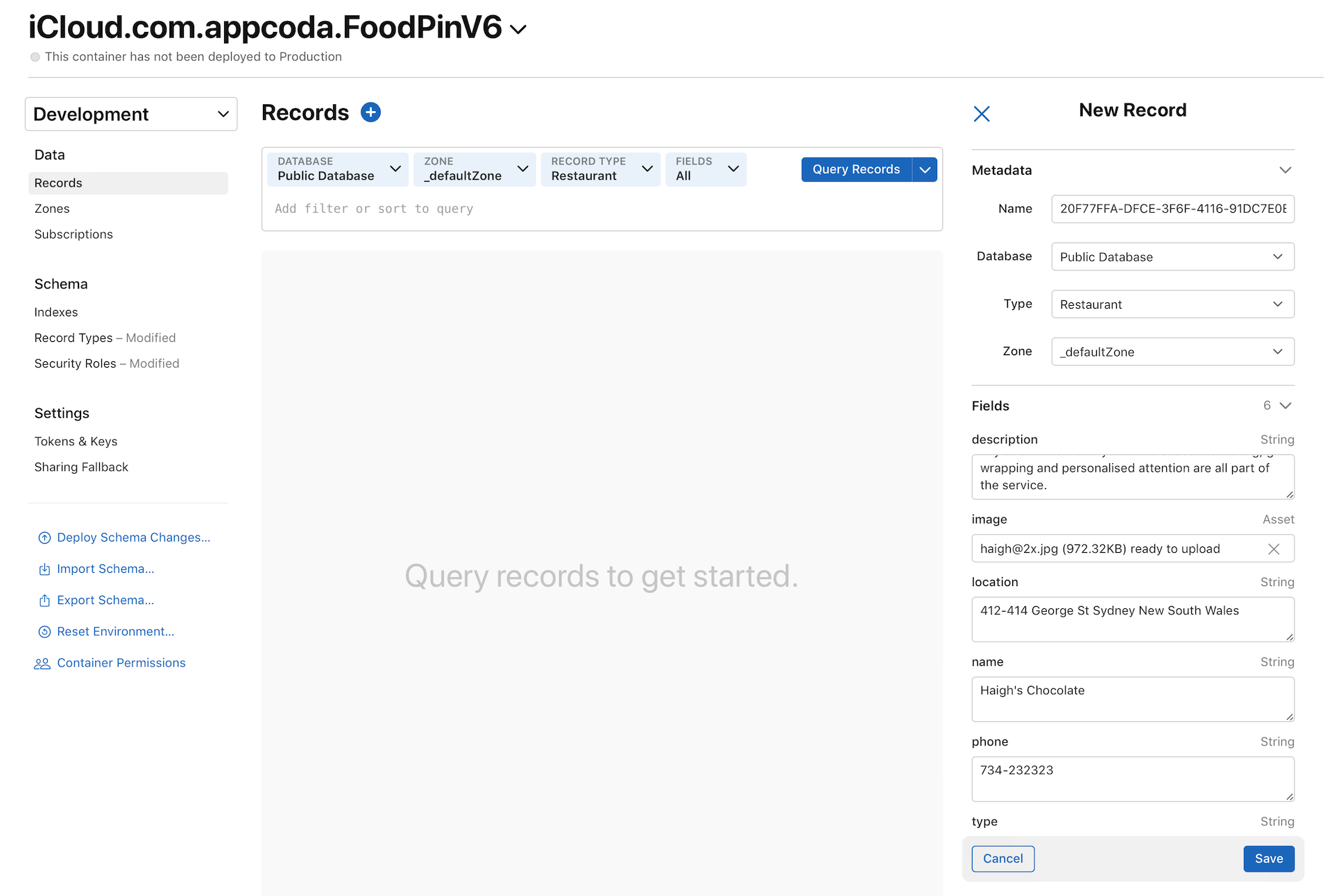
Now you have created a Restaurant record in the cloud. Repeat the same procedures and create around 10 records; we'll use them later.
If you've tried to query the records, you will end up with an error "Queried type is not marked indexable." All the metadata indexes for record types created are disabled by default. Therefore, before you are allowed to query the records, you will have to add an index to the database.
Click the Indexes option under Schema in the menu bar, choose Restaurant, and then click + to add a new index. A database index allows a query to efficiently retrieve data from a database. You can click the Add Index button to create an index. We are going to create two indexes on the recordName and createdTimestamp fields. For the recordName field, the index type is set to Queryable which means that the records can be queried. Later, we will retrieve the records in reverse chronological order. Thus, we set the index type of the createdTimestamp field to Sortable.
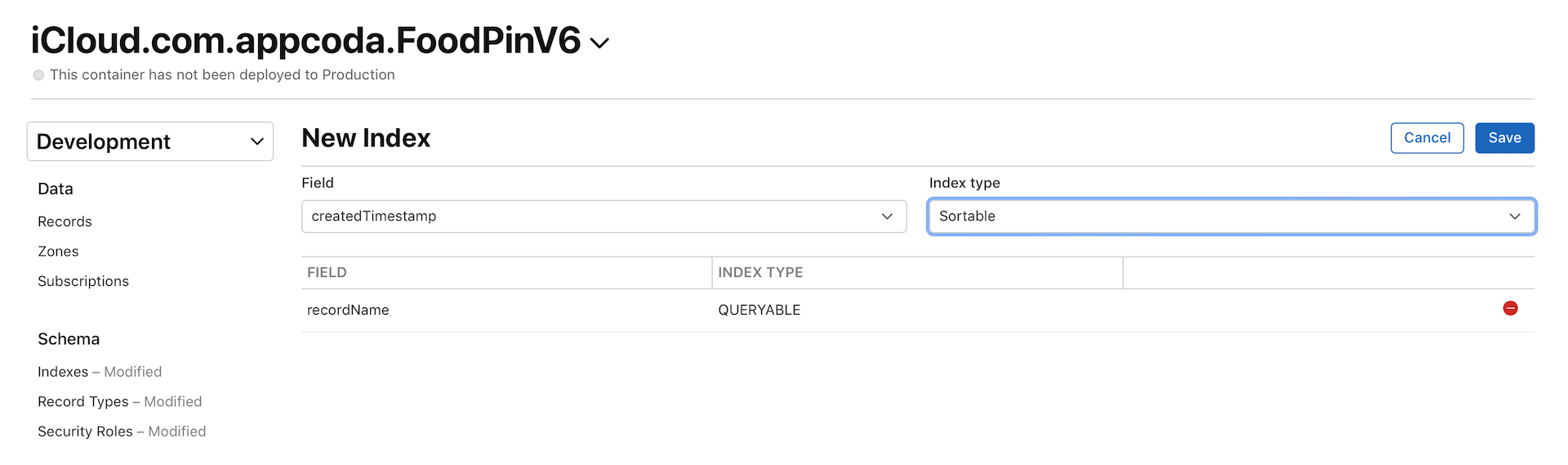
After saving the changes, go back to the Records panel, choose Public Database, and click the Query Records button. You should now be able to retrieve the restaurant records.
Fetching Data from a Public Database Using Convenience API
The CloudKit framework provides two types of APIs for developers to interact with iCloud. They are known as the convenience API and the operational API. Both APIs let you save and fetch data from iCloud asynchronously. In other words, the data transfer is executed in the background. We will first go over the convenience API and use it to implement the Discover tab. After that, we will discuss the operational API.
As its name suggests, the convenience API allows you interact with iCloud with just a few lines of code. In general, you just need the following code to fetch the Restaurant records from the cloud:
let cloudContainer = CKContainer.default()
let publicDatabase = cloudContainer.publicCloudDatabase
let predicate = NSPredicate(value: true)
let query = CKQuery(recordType: "Restaurant", predicate: predicate)

do {
    let results = try await publicDatabase.records(matching: query)

    // Process the records

} catch {
    // Handle the error
}
The above code is fairly straightforward. We first get the default CloudKit container of the app, followed by obtaining the default public database. To retrieve the Restaurant records from the public database, we construct a CKQuery object with the Restaurant record type and the search criteria (i.e. predicate).
The predicate may be new to you. The iOS SDK provides a foundation class called NSPredicate for developers to specify how data should be filtered. If you have some database background, you may think of it as the WHERE clause in SQL. You can't perform a CKQuery without a predicate. Even if you want to query the records without any filtering, you still need to specify a predicate. In this case, we initialize a predicate that always evaluates to true. This means we do not perform any sorting on the query result.
Lastly, we call the records method of CKDatabase with the query. CloudKit then searches and returns the results. The search and data transfer operations are executed in the background (or run asynchorously) to prevent the blocking of UI operations.
In iOS 15, Apple introduced a new feature known as async/await for handling asynchronous operations. This feature simplifies the code when we need to work with background operations.
If you take a look at the API documentation, the records method is an asynchronization function, which is indicated by the async keyword:
func records(matching query: CKQuery, inZoneWith zoneID: CKRecordZone.ID? = nil, desiredKeys: [CKRecord.FieldKey]? = nil, resultsLimit: Int = CKQueryOperation.maximumResults) async throws -> (matchResults: [(CKRecord.ID, Result<CKRecord, Error>)], queryCursor: CKQueryOperation.Cursor?)
This means this operation is executed asynchronously. When calling a method with the async keyword, you need to put the await keyword in front of the call:
let results = try await publicDatabase.records(matching: query)
That's all you need to do to work with asynchronously operation. The system will wait for the completion of this asynchronous operation before executing the code below // Process the records.
Note that the try keyword is used to catch any errors during the record fetch.
Simple, right? Now let's go back to our FoodPin project and implement the Discover tab.
First, create a DiscoverTableViewController class for the table view controller. In the project navigator, right-click the Controller folder and select New Files…. Choose the Cocoa Touch Class template. Name the class DiscoverTableViewController and set it as a subclass of UITableViewController.
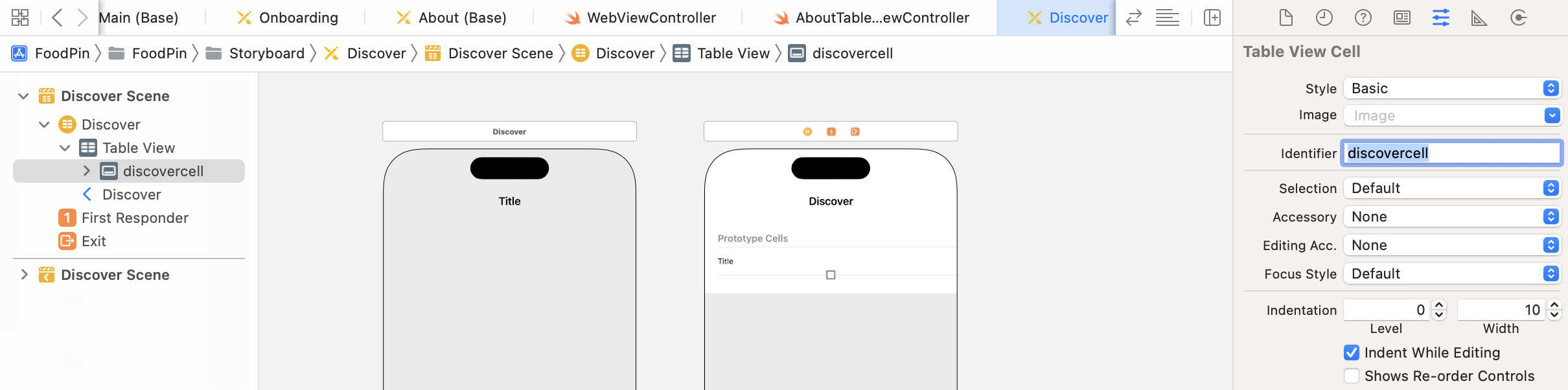
Once created, go to the Discover storyboard. Select the table view controller of the Discover tab and set its custom class to DiscoverTableViewController in the Identity inspector. For the prototype cell, just use the Basic style and set the identifier to discovercell.
Now you are ready to implement DiscoverTableViewController to fetch records from the cloud. To use CloudKit, you have to first import the CloudKit framework. Insert the following line of code at the very beginning of DiscoverTableViewController.swift:
import CloudKit
These two methods are generated by Xcode. However, we do not need them. Delete the following code:
override func numberOfSections(in tableView: UITableView) -> Int {
    // #warning Incomplete implementation, return the number of sections
    return 0
}

override func tableView(_ tableView: UITableView, numberOfRowsInSection section: Int) -> Int {
    // #warning Incomplete implementation, return the number of rows
    return 0
}
Next, declare a restaurants variable that stores an array of CKRecord objects. Initially, the array is empty. Later, we use it to store the records fetched from the cloud.
var restaurants: [CKRecord] = []
Also, declare another variable for the data source. Again, we will use the diffable data source to populate the data in the table view:
lazy var dataSource = configureDataSource()
When the Discover tab is loaded, the app will start to fetch the records via CloudKit. Update the viewDidLoad() method like this:
override func viewDidLoad() {
    super.viewDidLoad()

    tableView.cellLayoutMarginsFollowReadableWidth = true
    navigationController?.navigationBar.prefersLargeTitles = true

    // Customize the navigation bar appearance
    if let appearance = navigationController?.navigationBar.standardAppearance {

        appearance.configureWithTransparentBackground()

        if let customFont = UIFont(name: "Nunito-Bold", size: 45.0) {

            appearance.titleTextAttributes = [.foregroundColor: UIColor(named: "NavigationBarTitle")!]
            appearance.largeTitleTextAttributes = [.foregroundColor: UIColor(named: "NavigationBarTitle")!, .font: customFont]
        }

        navigationController?.navigationBar.standardAppearance = appearance
        navigationController?.navigationBar.compactAppearance = appearance
        navigationController?.navigationBar.scrollEdgeAppearance = appearance
    }

    // Fetch record from iCloud
    fetchRecordsFromCloud()

    // Set the data source of the table view for Diffable Data Source
    tableView.dataSource = dataSource
}
In the code above, we customize the navigation bar and call a new method fetchRecordsFromCloud() to fetch records from iCloud. We also set the table view's data source. We haven't implemented both fetchRecordsFromCloud() and configureDataSource() methods.
Let's start with the implementation of the fetchRecordsFromCloud method. Insert the following code in the DiscoverTableViewController class:
func fetchRecordsFromCloud() async throws {

    // Fetch data using Convenience API
    let cloudContainer = CKContainer.default()
    let publicDatabase = cloudContainer.publicCloudDatabase
    let predicate = NSPredicate(value: true)
    let query = CKQuery(recordType: "Restaurant", predicate: predicate)

    let results = try await publicDatabase.records(matching: query)

    for record in results.matchResults {
        self.restaurants.append(try record.1.get())
    }

    self.updateSnapshot()

}
The block of code is nearly the same as the one we discussed before. After the records method returns us the result, we iterate through the results array and add those CKRecord objects to the restaurants array. Finally, we call the updateSnapshot() method to refresh the table view with the updated restaurants.
You may notice that the fetchRecordsFromCloud() function is marked with both async and throws keywords. This indicates the function executes asynchorously and may throw errors.
We haven't implemented the updateSnapshot() method yet, so insert the following code to create the method:
func updateSnapshot(animatingChange: Bool = false) {

    // Create a snapshot and populate the data
    var snapshot = NSDiffableDataSourceSnapshot<Section, CKRecord>()
    snapshot.appendSections([.all])
    snapshot.appendItems(restaurants, toSection: .all)

    dataSource.apply(snapshot, animatingDifferences: false)
}
The code should be very familiar to you. We create a snapshot and add the restaurants to the table view.
Lastly, let's implement the configureDataSource() method:
func configureDataSource() -> UITableViewDiffableDataSource<Section, CKRecord> {

    let cellIdentifier = "discovercell"

    let dataSource = UITableViewDiffableDataSource<Section, CKRecord>(tableView: tableView) { (tableView, indexPath, restaurant) -> UITableViewCell? in

        let cell = tableView.dequeueReusableCell(withIdentifier: cellIdentifier, for: indexPath)

        cell.textLabel?.text = restaurant.object(forKey: "name") as? String

        if let image = restaurant.object(forKey: "image"), let imageAsset = image as? CKAsset {

            if let imageData = try? Data.init(contentsOf: imageAsset.fileURL!) {
                cell.imageView?.image = UIImage(data: imageData)
            }
        }

        return cell
    }

    return dataSource
}
Again, you should be very familiar with the code. This is how we use the diffable data source to populate the table data. Note that the restaurants variable contains an array of CKRecord objects. As mentioned before, a CKRecord object is a dictionary of key-value pairs that you use to fetch and save the data of your app. It provides the object(forKey:) method to retrieve the value of a record field (e.g. the name field of the restaurant). When creating the Restaurant record type in the CloudKit dashboard, we use Asset as the type of the image field. Thus, the object returned is a CKAsset object.
When downloading a record containing an asset, CloudKit stores the asset data in the local file system. You can then retrieve the asset data with the URL in the fileURL property. This is why we can load the image by accessing the fileURL property of the image asset.
if let imageData = try? Data.init(contentsOf: imageAsset.fileURL) {
    cell.imageView?.image = UIImage(data: imageData)
}
We've discussed how to load an image with binary data before. But what is the try? keyword? When you initialize a Data with the file URL, Data may fail to load the file and throws you an error. You can create a do-catch statement to handle the error. But in the above code, we use try? instead. In this case, if an error is thrown, the method returns an optional without a value. If the image file is successfully loaded, the data is bind to the imageData variable. try? is particularly useful if you do not care about the error message.
In development, when you run your app through Xcode on a simulator or a device, you need to enter iCloud credentials to read records in the public database. In production, the default permissions allow non-authenticated users to read records in the public database but do not allow them to write records.
- Apple's CloudKit Quick Starter Guide
Lastly, you should notice an error in the viewDidLoad() method, saying the fetchRecordsFromCloud() got some issues. The fetchRecordsFromCloud() method is an async call. To call it up properly, update the code like this:
Task.init(priority: .high) {
    do {
        try await fetchRecordsFromCloud()
    } catch {
        print(error)
    }
}
To execute an asynchronous call, we need to create an instance of Task. In the code above, we set the priority of the task to high and execute the fetchRecordsFromCloud() function asynchoronsly.
I know you can't wait to test the Discover feature. Before testing the app in the simulator, however, you have to configure the iCloud setting. Otherwise, you will not be able to fetch the data from iCloud. In the Simulator, click the home button to go back to Home screen. Select Settings and sign in with your Apple ID.
Now you're ready to run the app. Select the Discover tab and the app should be able to fetch the restaurants through CloudKit. Figure 24-15 shows a sample screenshot of the Discover tab.
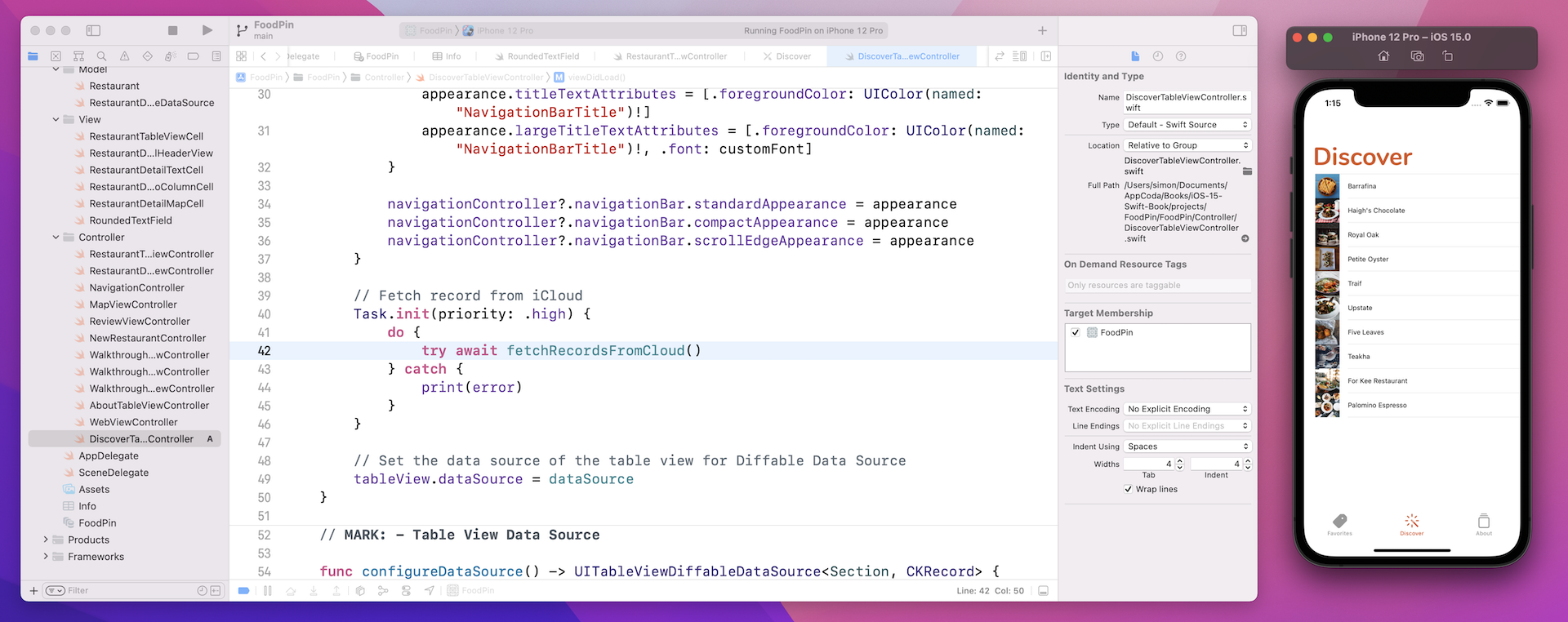
Occasionally you may end up with an error in the console. In this case, click the Stop button to quit the app and launch it again.
Fetching Data from Public Database Using Operational API
The convenience API is good for simple queries. However, it does have some limitations. The records method is only suitable for retrieving a small amount of data. If you have a few hundred records (or even more), the convenience API may not fit. You cannot perform additional tweaking with the convenience API. When you call the records method, it retrieves all restaurant records. For each record, it downloads the whole records including the image and every other field. However, as you may notice, the app just displays the restaurant names and the images. We can actually leave out those fields like phone number, type, and location to save some bandwidth.
So how can you tell CloudKit to merely retrieve the name field of all restaurant records? You cannot do that via the convenience API. In this case, you'll need to explore the operational API.
The usage of operational API is similar to that of the convenience API but it offers more flexibility. Let's jump right into the code. Replace the fetchRecordsFromCloud method with the following code snippet:
func fetchRecordsFromCloud() {

    // Fetch data using Convenience API
    let cloudContainer = CKContainer.default()
    let publicDatabase = cloudContainer.publicCloudDatabase
    let predicate = NSPredicate(value: true)
    let query = CKQuery(recordType: "Restaurant", predicate: predicate)

    // Create the query operation with the query
    let queryOperation = CKQueryOperation(query: query)
    queryOperation.desiredKeys = ["name", "image"]
    queryOperation.queuePriority = .veryHigh
    queryOperation.resultsLimit = 50
    queryOperation.recordMatchedBlock = { (recordID, result) -> Void in
        do {
            self.restaurants.append(try result.get())
        } catch {
            print(error)
        }
    }

    queryOperation.queryResultBlock = { [unowned self] result in
        switch result {
        case .failure(let error):
            print(error.localizedDescription)
        case .success:
            print("Successfully retrieve the data from iCloud")
            self.updateSnapshot()
        }
    }

    // Execute the query
    publicDatabase.add(queryOperation)

}
The first few lines of code are exactly as before. We get the default container and the public database, followed by creating the query for retrieving the restaurant records.
Instead of calling the perform method to fetch the records, we create a CKQueryOperation object for the query. This is why Apple called it operational API. The query operation object provides several options for your configuration. The desiredKeys property lets you specify the fields to fetch. You use this property to retrieve only those fields that you need for the app. In the above code, we tell the query operation object that we only need the name and image fields of the records.
Other than the desiredKeys property, you can use the queuePriority property to specify the execution priority of the operation and resultsLimit property to set the maximum number of records at any one time.
The operation object will be executed in the background. It reports the status of the query operation through two callbacks. One is recordMatchedBlock and the other is queryResultBlock. The block of code within recordMatchedBlock will be executed every time a record returned. In the code snippet, we simply append each of the returned records to the restaurants array or print out the error details if there is any errors.
On the other hand, queryResultBlock allows you to specify the code block that executes after all records are fetched. In this case, we ask the table view to reload and display the restaurant records.
Let me talk a bit more about the queryResultBlock. It provides a cursor object as a parameter to indicate if there are more results to fetch if the result is a success case. Recall that we use the resultsLimit property to control the number of the fetched records, the app may not be able to fetch all data in a single query. In this case, a CKQueryCursor object indicates there are more results to fetch. Additionally, it marks the stopping point of the query and the starting point for retrieving the remaining results. For example, let's say you have a total of 100 restaurant records. For each search query, you can get a maximum of 50 records. After the first query, the cursor would indicate that you have fetched record 1-50. For your next query, you should start from the 51st record. The cursor is very useful if you need to get your data in multiple batches. This is one of the ways to retrieve a large set of data.
At the end of the fetchRecordsFromCloud method, we call the add method of the CKDatabase class to execute the query operation.
Before you test the app, replace the following code in viewDidLoad():
Task.init(priority: .high) {
    do {
        try await fetchRecordsFromCloud()
    } catch {
        print(error)
    }
}
with:
fetchRecordsFromCloud()
It's a bit troublesome at this stage while Apple is transiting from completion handler-based asynchronous APIs into the new async/await-based APIs. The API we used in the previous section is the new async APIs. This is why we have to put the call in an instance of Task. In this section, the API we deal with is completion handler-based asynchronous APIs. You can just make the call directly.
You can now compile and run the app again. The result should be the same as before. Internally, however, you have built a custom query to fetch only those data you need.
Optimizing the Performance
Up until now, both approaches achieve the same performance. It is not too slow as the size of the data set is relatively small. However, as your data set grows, it will take even longer to download and display the records to users. Performance is critical in mobile app development. Your users expect your app to be fast and responsive. A sluggish performance of an app may mean losing a customer. So how can we improve the performance?
Optimizing the server performance? No, that's out of our control. We can only focus on the things that we can optimize.
Reducing the size of the images? This is a good suggestion. You can further optimize the images to achieve a faster download. But from a user point of view, the improvement would not be very significant as the sizes of the original images were moderately optimized.
Tip: tinypng.com is a great website for image optimization.
When we talk about performance optimization, sometimes we're not talking about optimizing the real performance but rather perceived performance. Perceived performance refers to how fast your user thinks your app is. Let me give you an example. Say, after a user taps the Discover tab, it takes 10 seconds to load the restaurant records. You then optimize the image sizes and reduce the loading time to 6 seconds. The real performance is improved by 40%. You think that's a huge improvement. But the perceived performance is still sluggish. To the user, your app is still slow because it can't respond instantaneously. When it comes to performance optimization, sometimes the technical statistics do not matter. Rather, it's about optimizing the perceived performance to make users feel that your app is speedy.
Activity Indicators
One way to improve the perceived performance is to make your app responsive. Currently, when a user selects the Discover tab, nothing shows up. The user expects an instantaneous response. This doesn't mean you have to show the remote content immediately. However, your app should at least display something even it's waiting for the data. Adding an animated spinner or an activity indicator will do the trick. The spinner gives a real-time feedback and tells the user that something is happening. Research has also shown that the feeling of waiting can be reduced by keeping a user's attention occupied.


The UIKit framework provides a class called UIActivityIndicatorView for showing a spinner to indicate a task is in progress. Now declare a property in the DiscoverTableViewController class:
var spinner = UIActivityIndicatorView()
In the viewDidLoad() method, insert the following code:
spinner.style = .medium
spinner.hidesWhenStopped = true
view.addSubview(spinner)

// Define layout constraints for the spinner
spinner.translatesAutoresizingMaskIntoConstraints = false
NSLayoutConstraint.activate([ spinner.topAnchor.constraint(equalTo: view.safeAreaLayoutGuide.topAnchor, constant: 150.0),
                              spinner.centerXAnchor.constraint(equalTo: view.centerXAnchor)])

// Activate the spinner
spinner.startAnimating()
When the spinner is first initialized, its position is set to the top-left of a view. Here we use the center property to place the indicator at the center of the view. The hidesWhenStopped property controls whether the indication is hidden when the animation is stopped. Once the indicator is configured, you can add it to the current view and call the startAnimating method to start the animation.
In the code above, we define the layout constraints programmatically. We first set the translatesAutoresizingMaskIntoConstraints to false. This tells iOS not to create any auto layout constraints for the spinner view. We will do it manually. Then we add a couple of the layout constraints to center the spinner horizontally and place it 150 points below the top anchor of the safe area.
That's it! If you run the app, the activity indicator will appear when you select the Discovery tab. However, it doesn't hide even when the restaurant records are fully loaded.
The indicator has no idea when it should be hidden. When the data download completes, you have to explicitly call the stopAnimating method to stop the animation, right after calling the updateSnapshot() method in fetchRecordsFromCloud(). Because the hidesWhenStopped property is set to true, the activity indicator will then be hidden automatically.
func fetchRecordsFromCloud() {

    .
    .
    .

    queryOperation.queryResultBlock = { [unowned self] result in
        switch result {
        case .failure(let error):
            print(error.localizedDescription)
        case .success:
            print("Successfully retrieve the data from iCloud")
            self.updateSnapshot()
        }

        self.spinner.stopAnimating()
    }

    .
    .
    .
}
Once you made the change, you can run the app again and see if the spinner works. Oops… why didn't it work? The spinner was not stopped and Xcode ends up with the following error in the console:
Main Thread Checker: UI API called on a background thread: -[UIActivityIndicatorView stopAnimating]
PID: 38739, TID: 8039478, Thread name: (none), Queue name: com.apple.cloudkit.operation-B78B65B33527946D.callback, QoS: 0
You should also notice a purple indicator at the top right corner of the code editor in Xcode. Click the indicator and you can find out the root cause of the error:
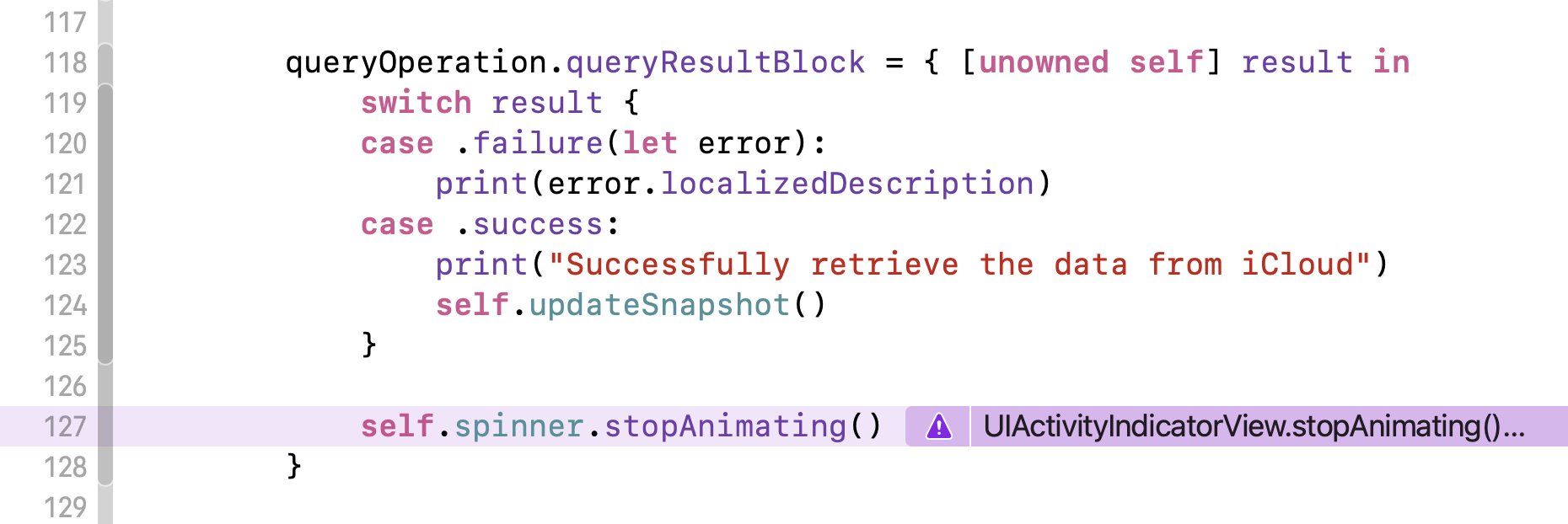
What does the error message mean? How do you make the call in the main thread?
Basically, there are two types of operations in an app: synchronous and asynchronous. When the app executes a synchronous operation, it initiates the operation and waits until it finishes. During the execution of the operation, every other operations like UI updates and user interaction events will be blocked.
On the other hand, if the operation is asynchronous in nature, the app usually initiates the operation in a background thread and will not wait for its completion. This frees up itself to handle other operations such as UI updates. When the operation is done, it calls up the completion handler to perform further operations.
Like most network calls in iOS, the query operation is an asynchronous call. The block of code specified in the queryResultBlock are executed on the background thread.
There is one rule of iOS programming you have to remember. All UI updates should be run on the main thread to keep your UI responsive. In the code above, self.spinner.stopAnimating() is a UI update. This is why Xcode highlighted that line of code telling you that it must be used from the main thread.
So, how can you instruct iOS to run a certain line or block of code on the main thread?
You can wrap that line of code in a call to DispatchQueue.main.async like this to ensure the table view update is run on the main thread:
DispatchQueue.main.async {
    self.spinner.stopAnimating()
}
Now run the project again. The app should be able to stop the spinner properly.
Lazy Loading Images
Cool! The spinner made the app more responsive. Are there any other ways to optimize the performance? Let's take a look at how we fetch the data from iCloud. Currently, the app displays the records on screen only when all restaurant records are downloaded completely including the download of the restaurant images.
Obviously, this download operation is one of the bottlenecks. It takes time to download all images. Wouldn't it be great if we can retrieve the restaurant names and display them in the table view first? The size of the restaurant names is significantly smaller than the size of the images. It will take a fraction of the total time to download the data.
This sounds great! But what about the images? We will employ a well-known technique called lazy loading. Simply put, we defer the download of the images. At first, we just display a local image, bundled in the app, in the table view cell. Then we start another thread in the background to download the remote images. When the image is ready, the app updates the cell's image view. Figure 24-18 illustrates the lazy loading technique.
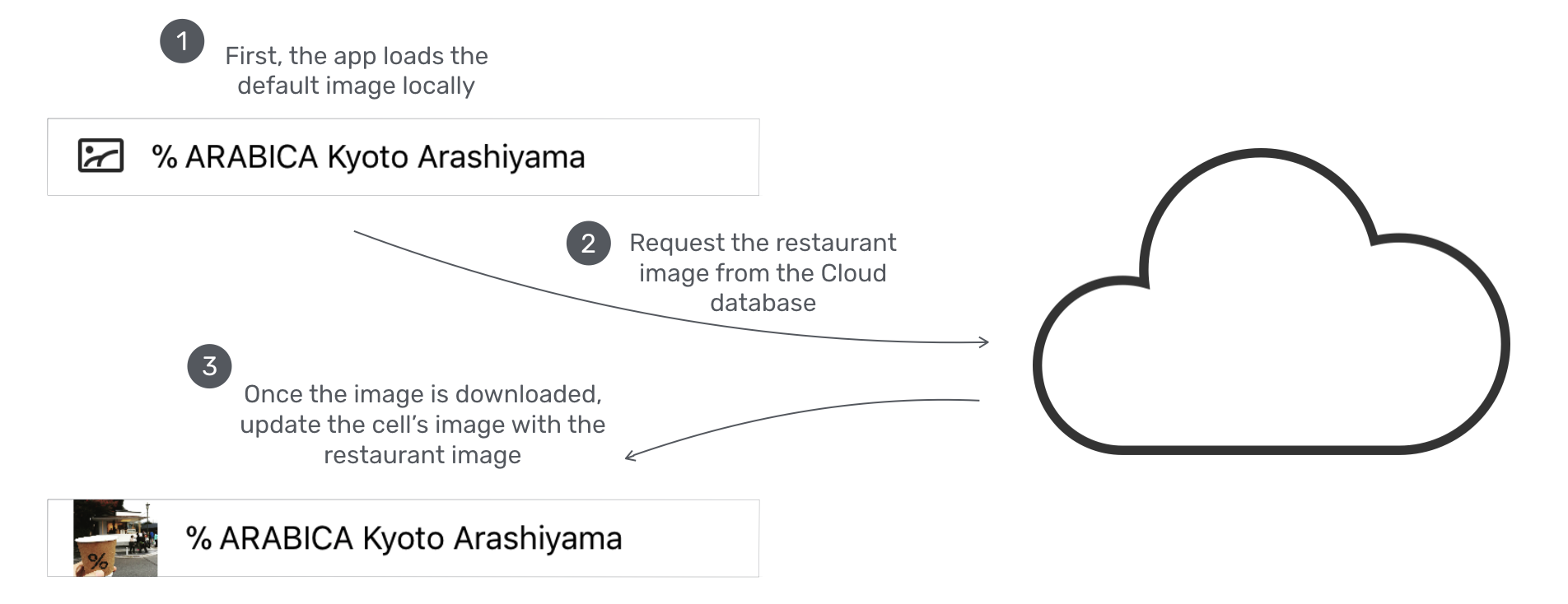
With lazy loading in place, your user will be able to view the restaurant data almost instantly. Though the images are not ready when the data is first loaded, it improves the responsiveness of your app.
Let's see how we can implement it in the app. Because we defer the image download, we have to update the desireKeys property of the query operation in the fetchRecordsFromCloud method like this.
From:
queryOperation.desiredKeys = ["name", "image"]
To:
queryOperation.desiredKeys = ["name"]
Now we only retrieve the restaurant names and leave out the images. In the configureDataSource() method, we modify two things to implement lazy loading:
func configureDataSource() -> UITableViewDiffableDataSource<Section, CKRecord> {

    let cellIdentifier = "discovercell"

    let dataSource = UITableViewDiffableDataSource<Section, CKRecord>(tableView: tableView) { (tableView, indexPath, restaurant) -> UITableViewCell? in

        let cell = tableView.dequeueReusableCell(withIdentifier: cellIdentifier, for: indexPath)

        cell.textLabel?.text = restaurant.object(forKey: "name") as? String

        // Set the default image
        cell.imageView?.image = UIImage(systemName: "photo")
        cell.imageView?.tintColor = .black

        // Fetch Image from Cloud in background
        let publicDatabase = CKContainer.default().publicCloudDatabase
        let fetchRecordsImageOperation = CKFetchRecordsOperation(recordIDs: [restaurant.recordID])
        fetchRecordsImageOperation.desiredKeys = ["image"]
        fetchRecordsImageOperation.queuePriority = .veryHigh

        fetchRecordsImageOperation.perRecordResultBlock = { (recordID, result) in
            do {
                let restaurantRecord = try result.get()

                if let image = restaurantRecord.object(forKey: "image"),
                   let imageAsset = image as? CKAsset {

                    if let imageData = try? Data.init(contentsOf: imageAsset.fileURL!) {

                        // Replace the placeholder image with the restaurant image
                        DispatchQueue.main.async {
                            cell.imageView?.image = UIImage(data: imageData)
                            cell.setNeedsLayout()
                        }
                    }
                }
            } catch {
                print("Failed to get restaurant image: \(error.localizedDescription)")
            }
        }

        publicDatabase.add(fetchRecordsImageOperation)

        return cell
    }

    return dataSource
}
First, we set a default image (photo) for each cell. This image file is from the built-in SF Symbols. Since the image is loaded locally, it will be displayed almost instantly when a user taps the Discover tab. Secondly, we spawn a background thread to download the image asynchronously. Once the image is retrieved, the default image will be replaced by the image just downloaded. Because the size of the restaurant image is different from that of the placeholder image, we call setNeedsLayout() to ask the cell to lay out the view again.
The code is very similar to that of the fetchRecordsFromCloud method except that we use CKFetchRecordsOperation to fetch a specific record. Every record on the cloud has its own ID. To fetch the image of a specific restaurant record, we create a CKFetchRecordsOperation object with the ID of that particular restaurant record. Similar to CKQueryOperation, you can assign a code block (perRecordResultBlock) to execute when the record is available. In the code block, we just load the downloaded image in the cell's image view.
After the modification, you can test the app again. You'll see a great improvement in performance as the restaurant records should appear with just a little (or even no) delay. The thumbnails of the restaurants will get loaded in the background.
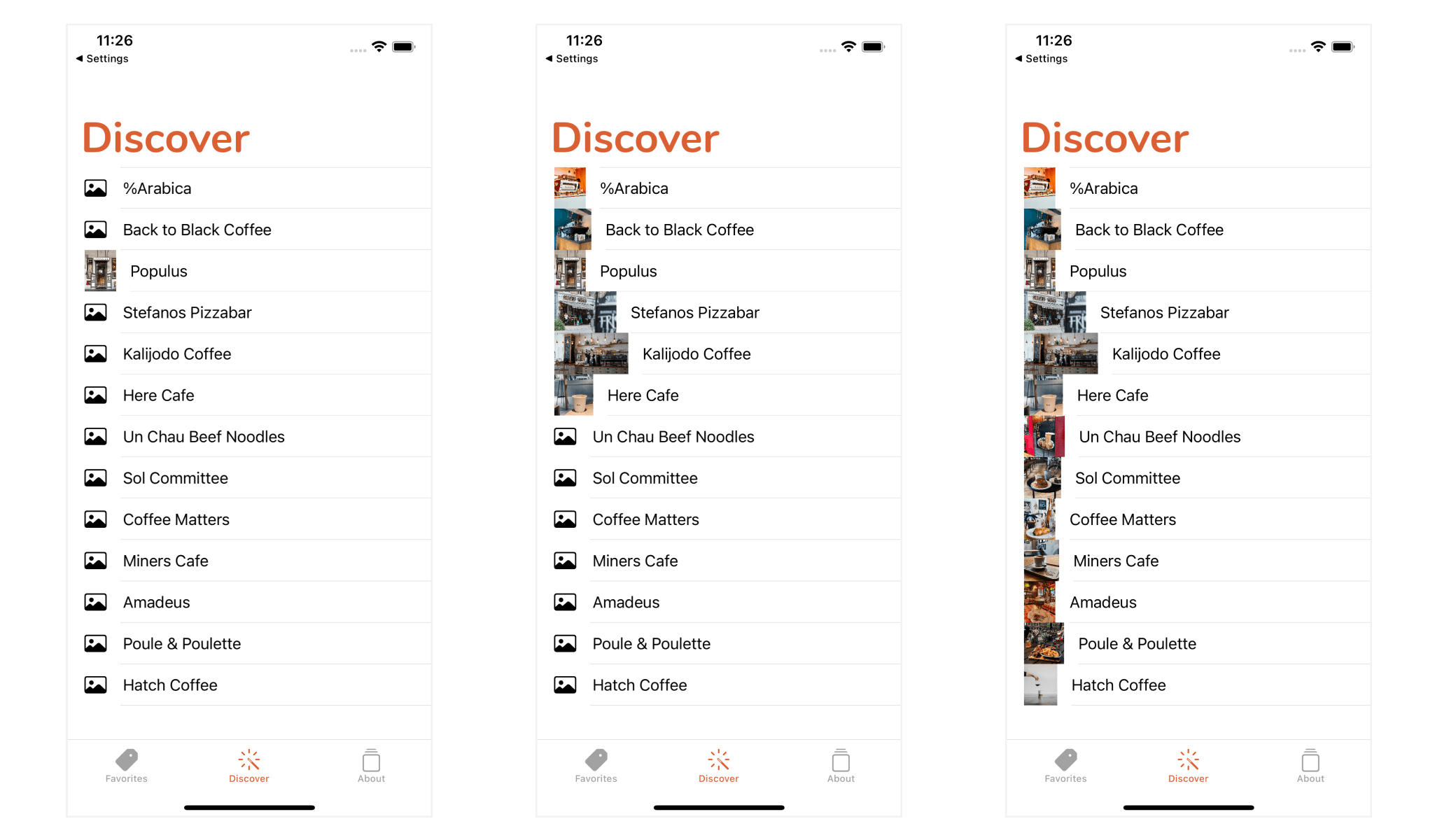
Caching Images Using NSCache
Have you tried to scroll through the table? Do you notice something unusual?
Every time a table view cell goes off and reappears on the screen, the cell's image will be reset back to the default image. The app then initiates the image download to retrieve the same restaurant image again. In terms of performance, this is extremely inefficient and a waste of Wi-Fi/cellular data.
Why don't we cache the image for later reuse?
Caching is one of the common approaches to improve app performance. iOS SDK provides an NSCache class for developers to implement simple caching. NSCache behaves like a dictionary and caches data in key-value pairs. You use setObject(_:forKey:) method to add an object to the cache using a specific key. To obtain an object of a given key from the cache, you use the object(forKey:) method. That's much the same as accessing items in a dictionary.
However, unlike a dictionary, it incorporates various auto-removal policies to clean up the cached objects. This ensures that it does not use too much of the system's memory.
So what do we need to do in order to cache the restaurant objects?
As mentioned earlier, CloudKit automatically downloads the images and saves them in the local file system. The images are then temporarily available for offline reading. You can use the fileURL property of the CKAsset class to retrieve the image's location. Thus, what we need to cache are the file URLs of the images.
To implement caching in the Discover tab, we'll make a couple of modifications:
- If the image is downloaded for the first time, we cache its file URL using
NSCachewith the record ID as the key. - When a table view cell loads an image, we first check if the image's file URL is stored in the cache. If yes, we get the URL from the cache and load it directly. Otherwise, we'll retrieve it from iCloud.
To create a cache object using NSCache, insert the following line of code in the DiscoverTableViewController class:
private var imageCache = NSCache<CKRecord.ID, NSURL>()
NSCache is a generic which is capable of caching multiple types of objects. When initializing it, you have to provide the type of the key and value pair in angle bracket. In this case, the key is of type CKRecord.ID and the value is of type NSURL. In other words, this imageCache is designed for caching NSURL objects using CKRecord.ID as a key.
In order to handle the image caching, we need to add a conditional block to check if the image's URL is available in the cache in the configureDataSource() method. Update the method like this:
func configureDataSource() -> UITableViewDiffableDataSource<Section, CKRecord> {

    let cellIdentifier = "discovercell"

    let dataSource = UITableViewDiffableDataSource<Section, CKRecord>(tableView: tableView) { (tableView, indexPath, restaurant) -> UITableViewCell? in

        let cell = tableView.dequeueReusableCell(withIdentifier: cellIdentifier, for: indexPath)

        cell.textLabel?.text = restaurant.object(forKey: "name") as? String

        // Set the default image
        cell.imageView?.image = UIImage(systemName: "photo")
        cell.imageView?.tintColor = .black

        // Check if the image is stored in cache
        if let imageFileURL = self.imageCache.object(forKey: restaurant.recordID) {
            // Fetch image from cache
            print("Get image from cache")
            if let imageData = try? Data.init(contentsOf: imageFileURL as URL) {
                cell.imageView?.image = UIImage(data: imageData)
            }

        } else {
            // Fetch Image from Cloud in background
            let publicDatabase = CKContainer.default().publicCloudDatabase
            let fetchRecordsImageOperation = CKFetchRecordsOperation(recordIDs: [restaurant.recordID])
            fetchRecordsImageOperation.desiredKeys = ["image"]
            fetchRecordsImageOperation.queuePriority = .veryHigh

            fetchRecordsImageOperation.perRecordResultBlock = { (recordID, result) in
                do {
                    let restaurantRecord = try result.get()

                    if let image = restaurantRecord.object(forKey: "image"),
                       let imageAsset = image as? CKAsset {

                        if let imageData = try? Data.init(contentsOf: imageAsset.fileURL!) {

                            // Replace the placeholder image with the restaurant image
                            DispatchQueue.main.async {
                                cell.imageView?.image = UIImage(data: imageData)
                                cell.setNeedsLayout()
                            }

                            // Add the image URL to cache
                            self.imageCache.setObject(imageAsset.fileURL! as NSURL, forKey: restaurant.recordID)
                        }
                    }
                } catch {
                    print("Failed to get restaurant image: \(error.localizedDescription)")
                }
            }

            publicDatabase.add(fetchRecordsImageOperation)
        }

        return cell
    }

    return dataSource
}
Basically, we made a couple of changes:
- If the URL can be found in the cache, we simply get the URL and load it right away.
- For images that are downloaded for the first time, we need to cache the image's URL. Therefore, we add a line of code to call
setObjectof the image cache. We use the record ID of the restaurant record as key and add the URL to the cache.
That's it. If you run the app and scroll through the records in the Discover tab, the images should be loaded from the cache if it is available. You will see the message "Get image from cache" in the console.
Pull to Refresh
After all the tweaks, the Discover tab should be working much better. However, there is a limitation. Once the restaurant records are loaded, there is no way to get an update.
Most modern iOS apps allow users to refresh their content through a feature called pull-to-refresh. The pull-to-refresh interaction was originally created by Loren Brichter. Since its invention, an endless number of apps, including Apple's Mail app, have adopted the design for content updates.
Thanks to the popularity of the pull-to-refresh feature. Apple has made a standard pull-to-refresh control in the iOS SDK. With the built-in control, it is very simple to add the pull-to-refresh feature to your app.
UIRefreshControl is a standard control for implementing the pull-to-refresh feature. You can simply associate a refresh control with a table view controller, which will automatically add the control to the table view. Let's see how it works.
In the DiscoverTableViewController class, insert the following lines of code in the viewDidLoad method:
// Pull To Refresh Control
refreshControl = UIRefreshControl()
refreshControl?.backgroundColor = UIColor.white
refreshControl?.tintColor = UIColor.gray
refreshControl?.addTarget(self, action: #selector(fetchRecordsFromCloud), for: UIControl.Event.valueChanged)
UIRefreshControl is very simple to use. You can instantiate it and assign it to the table view controller's refreshControl property. That's it. The table view controller handles the task of adding the control to the table's visual appearance. Similar to other view objects, you can configure the background color and tint color using the backgroundColor and tintColor properties.
The refresh control doesn't initiate the refresh operation when it is first created. Instead, when the table view is pulled down sufficiently, the refresh control triggers the UIControlEvent.valueChanged event. We have to assign an action method to this event and use it to fetch the restaurant records. To capture the event and specify the follow-up action, you can use the addTarget method of the refresh control object to register the UIControlEvent.valueChanged event. In the method call, you specify the target object (i.e. self) and the action method (i.e. fetchRecordsFromCloud) to handle the event. When the event is triggered, the refresh control will invoke the fetchRecordsFromCloud method to refresh the restaurant records.
If you've inserted the code snippet, Xcode immediately shows you an error and proposes a fix:
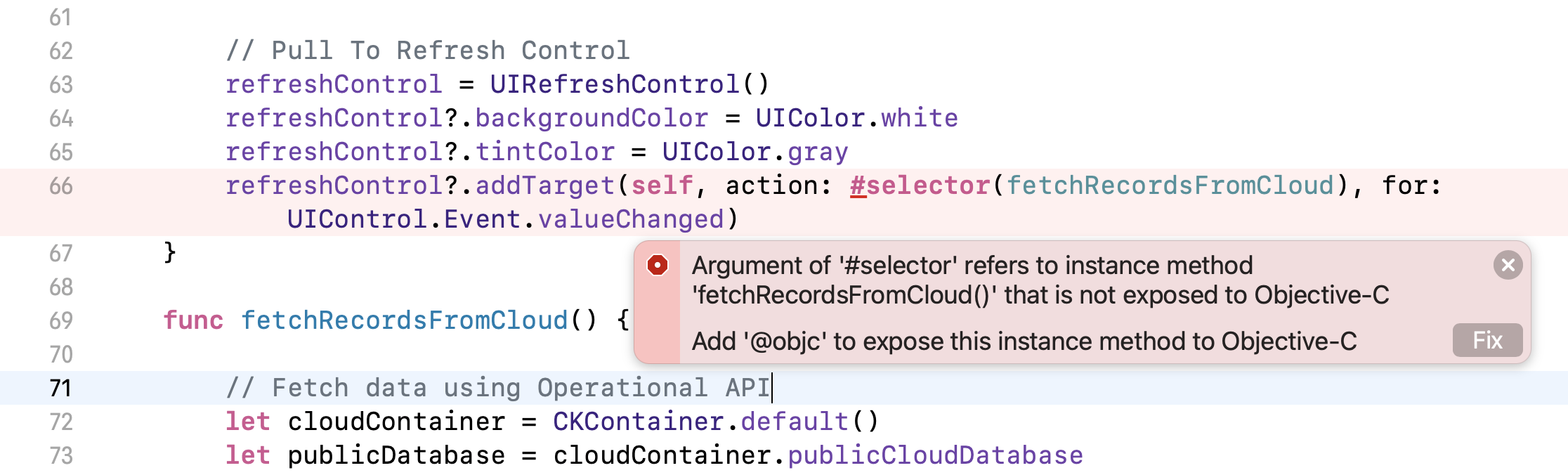
You can click the Fix button and let Xcode add the @objc prefix for fetchRecordsFromCloud().
@objc func fetchRecordsFromCloud() {
I know the error is a bit weird to you. Why Objective-C? We are now writing in Swift. While we are developing the app in Swift, not all features of the iOS SDK are written in Swift. Some are still in Objective-C. Selector is an example that isn’t part of the default Swift runtime behavior. Therefore, in order to create a selector (#selector(fetchRecordsFromCloud)) for a method that can be called from Objective-C, we have to specify the @objc keyword in the method declaration.
If you compile and run the app, the pull-to-refresh feature should work. Try to pull down the table until it triggers the refresh. If you've added new restaurants using CloudKit dashboard, the table should show the update. However, there's still a problem; the refresh control appears even after the table content is loaded.
So how can we hide the refresh control? When the data is ready, you can simply call the endRefreshing method to hide the control. Apparently, we can update queryResultBlock in the fetchRecordsFromCloud method by adding a few lines of code:
if let refreshControl = self.refreshControl {
    if refreshControl.isRefreshing {
        refreshControl.endRefreshing()
    }
}
You can place the code after self.spinner.stopAnimating(). Here we check if the refresh control is still refreshing. If yes, we call endRefreshing() to stop the animation and hide the control.
Now run the app again. The pull-to-refresh control should disappear when the data transfer completes.
Currently, there is a bug when you refresh the data from the cloud. Some of the records are duplicated because we didn't perform any checking before appending the records to the restaurants array. A simple fix is to update the recordMatchedBlock of the query operation in the fetchRecordsFromCloud method:
queryOperation.recordMatchedBlock = { (recordID, result) -> Void in
    do {
        if let _ = self.restaurants.first(where: { $0.recordID == recordID }) {
            return
        }

        self.restaurants.append(try result.get())
    } catch {
        print(error)
    }
}
Before appending the record to the restaurants array, we check if the record already appears in the array by using the record ID.
Saving Data Using CloudKit
Now that we have discussed data query, let's further explore the CloudKit framework and see how you can save data to the cloud. It all comes down to this convenience API provided by the CKDatabase class:
func save(_ record: CKRecord, completionHandler: @escaping (CKRecord?, Error?) -> Void)
The save(_:completionHandler:) method takes in a CKRecord object and uploads it to iCloud. When the operation completes, it reports the status by calling the completion handler. You can examine the error and see if the record is saved successfully.
To demonstrate the usage of the API, we'll tweak the Add Restaurant function of the FoodPin app. When a user adds a new restaurant, in addition to saving it to the local database, the record will also be uploaded to iCloud.
I'll go straight into the code and walk you through the logic along the way. In the NewRestaurantController class, import CloudKit:
import CloudKit
And add the following method:
func saveRecordToCloud(restaurant: Restaurant) {

    // Prepare the record to save
    let record = CKRecord(recordType: "Restaurant")
    record.setValue(restaurant.name, forKey: "name")
    record.setValue(restaurant.type, forKey: "type")
    record.setValue(restaurant.location, forKey: "location")
    record.setValue(restaurant.phone, forKey: "phone")
    record.setValue(restaurant.summary, forKey: "description")

    let imageData = restaurant.image as Data

    // Resize the image
    let originalImage = UIImage(data: imageData)!
    let scalingFactor = (originalImage.size.width > 1024) ? 1024 / originalImage.size.width : 1.0
    let scaledImage = UIImage(data: imageData, scale: scalingFactor)!

    // Write the image to local file for temporary use
    let imageFilePath = NSTemporaryDirectory() + restaurant.name
    let imageFileURL = URL(fileURLWithPath: imageFilePath)
    try? scaledImage.jpegData(compressionQuality: 0.8)?.write(to: imageFileURL)

    // Create image asset for upload
    let imageAsset = CKAsset(fileURL: imageFileURL)
    record.setValue(imageAsset, forKey: "image")

    // Get the Public iCloud Database
    let publicDatabase = CKContainer.default().publicCloudDatabase

    // Save the record to iCloud
    publicDatabase.save(record, completionHandler: { (record, error) -> Void  in

        if error != nil {
            print(error.debugDescription)
        }

        // Remove temp file
        try? FileManager.default.removeItem(at: imageFileURL)
    })
}
The saveRecordToCloud method takes in a Restaurant object, which is the object to save. We first transform the Restaurant object into a CKRecord object by instantiating a CKRecord of the Restaurant record type and setting its name, type and location values.
The restaurant image requires a bit of work. First, we don't want to upload a super-high resolution photo. We would like to scale it down before uploading. The UIImage class allows us to create an object with a certain scaling factor. In this case, any photo with a width larger than 1024 pixels will be resized.
As you know, you use CKAsset object to represent an image on the cloud. To create the CKAsset object, we have to provide the file URL of the scaled image. So we save the image in the temporary folder. You can use the NSTemporaryDirectory function to get the path of the temporary directory. By combining the path with the restaurant name, we have the temporary file path of the image. We then use jpegData(compressionQuality:) function of UIImage to compress the image data and call the write method to save the compressed image data as a file.
With the scaled image ready for upload, we can create the CKAsset object using the file URL. Lastly, we get the default public database and save the record to the cloud using the save method of CKDatabase. In the complete handler, we clean up the temporary file just created.
The saveRecordToCloud method is now ready. We will call the method in the saveButtonTapped(sender:) method of the NewRestaurantController class so that we upload the record to the public database. Insert the following line of code in the saveButtonTapped(sender:) method and place it right before dismiss(animated:completion:):
saveRecordToCloud(restaurant: restaurant)
You're ready to go! Hit the Run button and test the app. Click the + button to add a new restaurant. Once you save the restaurant, go to the Discover tab and you should find the new restaurant there. If it doesn't appear, wait for a few seconds, and pull-to-refresh the table again. Alternatively, you can go up to CloudKit Dashboard to reveal the new record.
In case if you ended up with the following error in the console, this means you do not have the Write permission to save the restaurant record.
Optional(<CKError 0x6000008b8de0: "Permission Failure" (10/2007); server message = "Operation not permitted"; op = 42ECEE08F2263E27; uuid = 1B58E52D-DCFD-4518-847D-8591E6E9B527; container ID = "iCloud.com.appcoda.FoodPinV6">)
To fix the issue, you have to change the permission of the Restaurant type in your cloud container. Therefore, go up the CloudKit dashboard and select your container. In the side menu, choose Security Role.
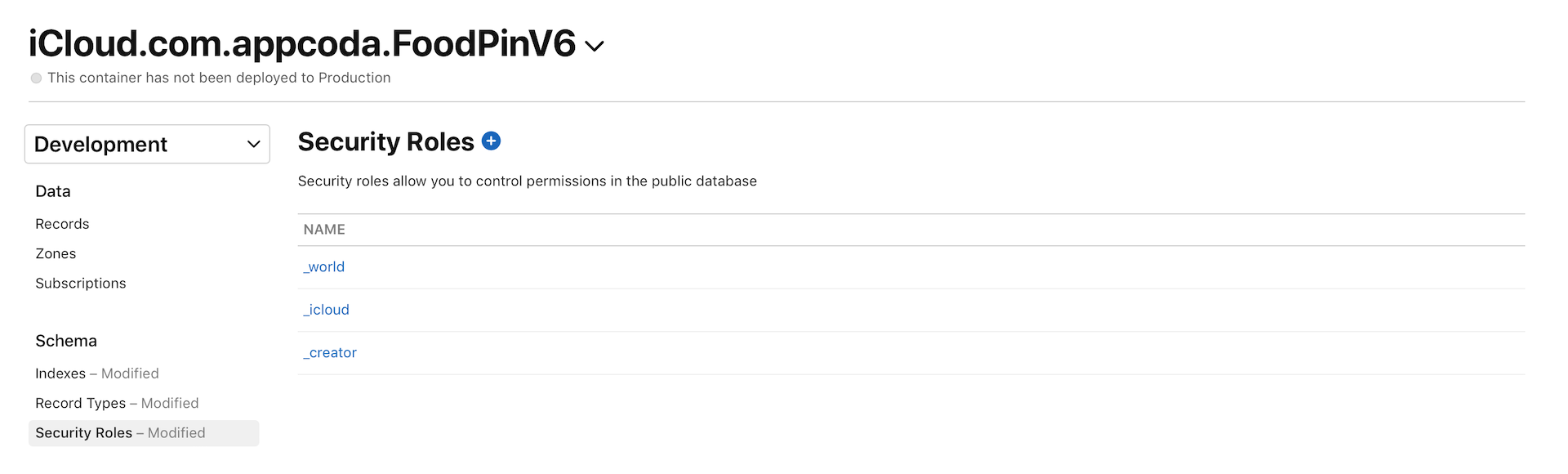
Next, choose _iCloud, which means those authenticated iCloud users, to set the permission of this role. By default, only the Create permission is enabled. To fix the issue, you have to enable both Read and Write permissions for the authenticated users.
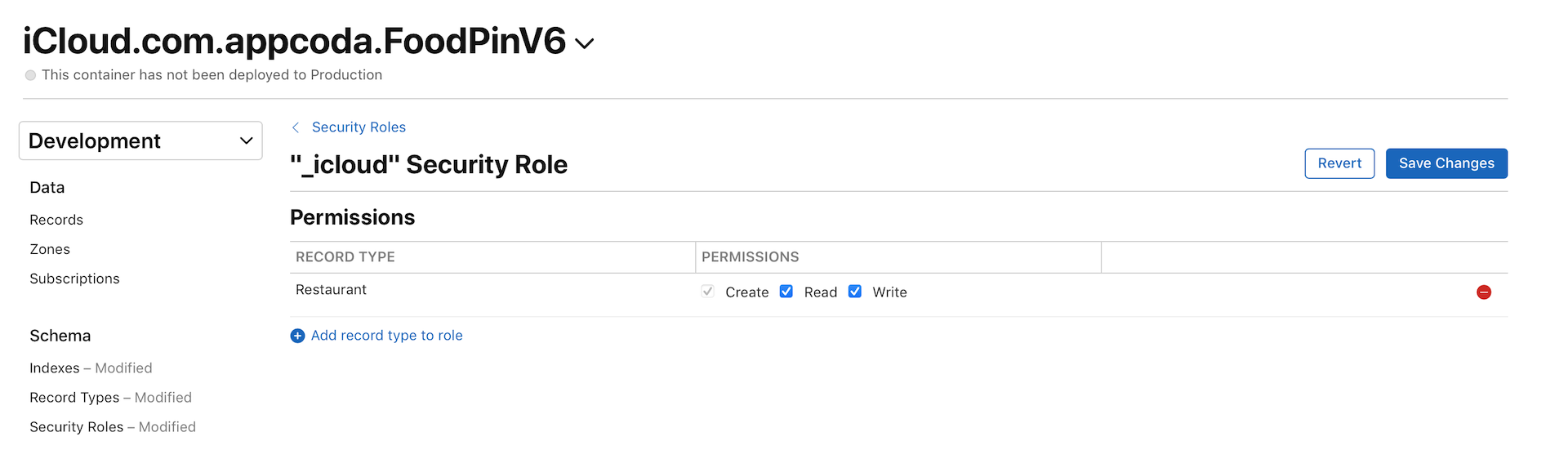
Once you save the role, you can test the app again. If you've already signed into iCloud on the simulator, you should be able to save the restaurant record to the cloud.
Sorting the Result by Creation Date
One problem with the Discover feature is that the restaurants are not in any order. As a user, you may want to view the new restaurants shared by other app users. That means, we need to arrange the results in reverse chronological order.
Sorting has been built into the CKQuery class. Here is the code snippet for creating the search query in the fetchRecordsFromCloud method of DiscoverTableViewController:
// Prepare the query
let predicate = NSPredicate(value: true)
let query = CKQuery(recordType: "Restaurant", predicate: predicate)
The CKQuery class actually provides a property named sortDescriptor. Earlier, we didn't set the sort descriptor. In this case, CloudKit returns an unordered collection of restaurant records. To request CloudKit to sort the records in reverse chronological order, you need to insert a line of code:
query.sortDescriptors = [NSSortDescriptor(key: "creationDate", ascending: false)]
This creates an NSSortDescriptor object using the creationDate key (which is a property of CKRecord) and sets the order to descending. When CloudKit performs the search query, it will order the results by creation date. You can run now the app again and add a new restaurant. Once saved, go to the Discover tab and the restaurant just added should appear first.
Exercise
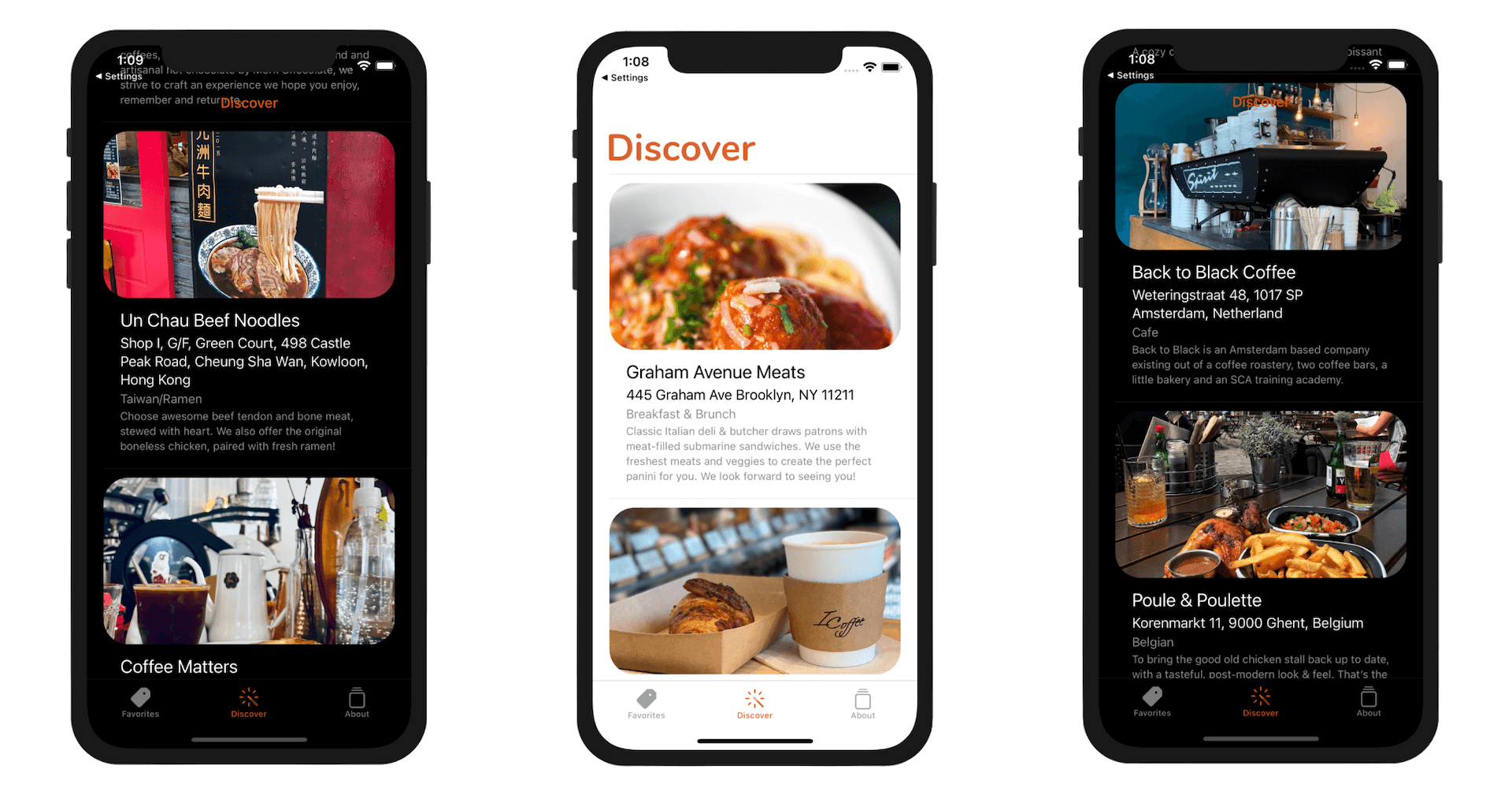
This exercise is designed to refresh your knowledge of table cell customization and self sizing cells. Presently, the cell in the Discover tab only displays the name and thumbnail of a restaurant. Modify the project so that the cell shows the restaurant's location and type. Figure 24-23 displays a sample screenshot.
Summary
Wow! You've made a social network app for sharing restaurants. This is a huge chapter; by now you should understand the basics of CloudKit. With CloudKit, Apple has made it so easy for iOS developers to integrate their apps with the iCloud database. The service is completely free, as long as, you've enrolled in the Apple Developer Program ($99 per year).
Along with the introduction of CloudKit JS, you are able to build a web app for users to access the same containers as your iOS app. This is a huge deal for developers. That said, CloudKit isn't perfect. CloudKit is an Apple product. I don't see any possibilities that the company would open up the service to other platforms. If you want to create a cloud-based app for both iOS and Android, CloudKit may not be your first choice. You may want to explore Google's Firebase, the open-sourced Parse server, Microsoft's Azure, or Kinvey.
If your primary focus is on the iOS platform, CloudKit holds a lot of potential for both you and your users. I encourage you to adopt CloudKit in your next app.
For your reference, you can download the complete Xcode project from http://www.appcoda.com/resources/swift57/FoodPinCloudKit.zip.
For the solution to the exercise, you can download the project from http://www.appcoda.com/resources/swift57/FoodPinCloudKitExercise.zip.